Key takeaways
- Learn what a gaming computer setup includes, how to choose the machine, display, controls, and seating, and how budget, mid-range, and premium tiers vary.
A gaming computer setup is the whole desk arrangement that a game runs on, not just the computer itself. It includes the machine, the display, the keyboard and mouse, the sound output, the chair, and the desk surface that holds them, plus the cables and power connections that link everything together. Each part has a separate job, and a weakness in one part can limit what the other parts deliver, so it helps to plan the setup as one system rather than as a pile of separate purchases.
This guide explains each part in plain terms, starting with what a setup includes and how to choose the core machine. It then covers the display, controls, and seating, and finishes with budget, mid-range, and premium tiers described without prices. The aim is to give you the vocabulary and the checks you need before you compare any specific listing, so that the parts you choose fit each other, fit your desk, and fit the way you play.
As an Amazon Associate we earn from qualifying purchases.
What a Gaming Computer Setup Includes
The Machine at the Centre
The machine is the part that runs the game. It is either a desktop tower that sits on or under the desk, or a laptop with the screen and keyboard built in. Inside, a processor handles the game’s calculations and the operating system, a graphics card turns game data into the image on the screen, memory holds the data the game is actively using, and storage holds the operating system, the installed games, and your files. The machine connects to the display with a video cable, and the keyboard, mouse, headset, and other peripherals connect to it by cable or wirelessly. Every other choice in the setup refers back to this machine, because its ports, its size, and its stated specifications decide which displays and accessories can connect to it.
The Display and the Desk Surface
The display shows the image the machine produces. It may be a monitor made for desk use or a television, and its stated size, resolution, and refresh rate describe how large the image is, how many picture elements it contains, and how many times per second it can redraw. The desk surface has to hold the display at a comfortable viewing distance, leave room for the keyboard and mouse in front of it, and leave space behind for cables and airflow around the machine. Measure the desk depth and width before choosing a display size, and check the height of the desk against the chair you plan to use. A setup that looks right in a photograph can still crowd a small desk, so the measurements matter as much as the specifications.
The Controls, Sound, and Seating
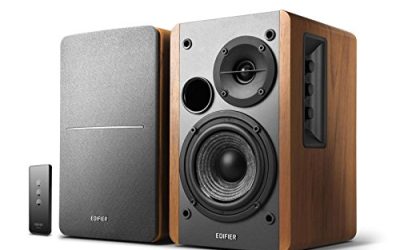
The controls are how you tell the game what to do: usually a keyboard and mouse, sometimes a controller, and occasionally a headset microphone for voice chat. Sound comes from a headset or from speakers, and the choice between them depends on whether you share the room and whether you need a microphone. The chair sets the height of your hands relative to the desk and the distance of your eyes from the display, so an adjustable chair that lets your feet rest flat and your arms sit level with the desk is part of the setup, not an afterthought. Lighting, cable routing, and a power strip are finishing touches: they do not change what the machine can do, but they decide whether the desk stays tidy and usable day to day.
Choosing the Core Machine
Desktop or Laptop
A desktop tower keeps the screen, keyboard, and machine separate, which leaves more room to replace individual parts later and more choice over the size of each part. It needs a desk position and a separate display. A laptop combines the machine, screen, and keyboard into one unit that can move between rooms, but most of its parts are fixed and its screen size is fixed too. The decision usually follows the room and the routine: a desk that never moves and a player who wants part-by-part choice points toward a desktop, while a shared room, frequent travel, or a need to pack the setup away points toward a laptop. Neither form is the default answer for everyone.
Processor and Graphics Card
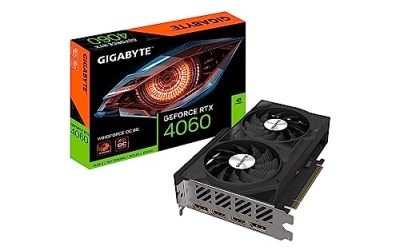
The processor and the graphics card are the two specifications most listings lead with, and they do different jobs. The processor runs the game’s logic, the operating system, and background tasks, and its stated core count and speed describe how much work it can handle at once. The graphics card renders the image, and its stated memory, measured in gigabytes and often shortened to VRAM, holds the textures and frame data it is working with. A higher-resolution display asks more of the graphics card, because each frame contains more picture elements. When comparing machines, read both specifications together and check them against the display you plan to use, rather than treating either figure on its own as a complete picture.
Memory and Storage
Memory, usually shortened to RAM, is the fast, temporary workspace the machine uses while a game is running. Listings state it in gigabytes, with smaller amounts suiting lighter use and larger amounts suiting machines running a game alongside streaming software, a browser, and chat programs. Storage is where files live when the machine is off, and it comes in two broad forms: solid-state drives, which have no moving parts, and hard disk drives, which store data on spinning disks. Solid-state storage suits the drive holding the operating system and the games you play most, while a larger second drive can hold files you open less often. Leave spare capacity on the main drive, because games and updates grow over time.
Choosing the Display, Controls, and Seating
The Display
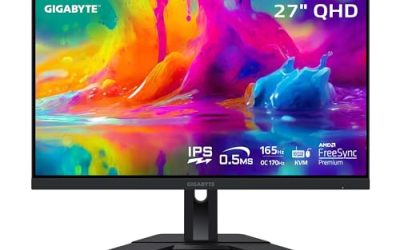
Display specifications start with size, measured diagonally, and resolution, the count of picture elements across and down the image. Common resolutions are 1080p, 1440p, and 4K, each with more picture elements than the last. Refresh rate, in hertz, states how many times per second the display redraws the image. Panel type describes how the display produces light and colour; viewing angle describes how far off-centre the image stays clear. Check the connection type too: display and machine must share a port standard, such as HDMI or DisplayPort, and the cable must support your planned resolution and refresh rate. A display is a long-term part of the setup, so its size and connections deserve attention equal to its picture specifications.
Keyboard and Mouse
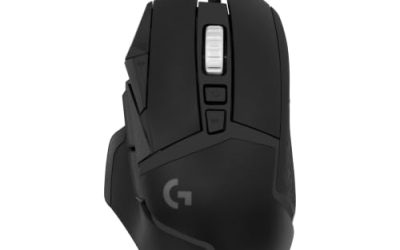
Keyboards come in two broad switch forms. Membrane keyboards use a rubber layer under the keys, while mechanical keyboards give each key its own switch, and listings usually state which form a keyboard uses and whether the switches can be swapped. Mice state a sensitivity figure, shortened to DPI, describing how far the pointer moves for a given hand movement, and most let you change it in steps. Both come in wired and wireless forms; wireless models state their connection type, such as Bluetooth or a dedicated receiver, plus their battery or charging arrangement. Hand size, grip style, and the games you play shape the choice, so check stated dimensions and connection type first.
Headset and Chair
A headset combines headphones and a microphone, suiting voice chat and shared rooms, while speakers suit a private room where game sound disturbs nobody. Headset listings state the connection type, whether the microphone detaches or folds away, and whether the ear cups and headband adjust. For the chair, the useful specifications are the adjustable height range, the stated weight rating, and whether the armrests and backrest adjust. The chair and the desk work as a pair: the seat height should let your hands rest level with the keyboard, and the display should sit at a distance where you can read text without leaning forward. If the chair cannot adjust to the desk, the desk height decides the setup.
Planning Around Budget Tiers
A Budget Tier Setup
A budget tier setup puts the machine and the display first and keeps the rest simple. The machine is chosen for the games you actually play, the display is sized to the desk, and the keyboard, mouse, and sound output are straightforward models with the connections the machine supports. Extras such as extra lighting, a second display, or a premium chair wait until later. This tier works best when the parts are compatible from the start, because a machine, display, and set of controls that fit each other leave a clear path to add or replace one part at a time without rebuilding the whole desk.
A Mid-Range Tier Setup
A mid-range tier setup balances the parts more evenly. The machine carries more memory and storage, the display is larger or higher in resolution than the budget tier, and the keyboard, mouse, and headset offer more adjustment, such as swappable switches, stepped sensitivity, or a detachable microphone. The desk itself may get more attention at this tier, with a cable tray, a monitor arm, or a larger surface that leaves room for notes or a second device. The aim is a setup where no single part is far ahead of the rest, so that the display, the controls, and the machine all sit in the same general class of specification.
A Premium Tier Setup
A premium tier setup uses higher specifications across the board: a machine with more processor and graphics capability, a larger or higher-resolution display with a higher refresh rate, and peripherals with wider adjustment ranges and more connection options. The desk, chair, lighting, and cable management are usually planned as part of the same purchase rather than added later. The differences from the mid-range tier are real but narrower than the step from budget to mid-range, because each specification step adds less once the basics are covered. Compatibility checks matter just as much here: a premium display still needs the right port and cable, and a premium machine still needs a desk with room for it.
Common Mistakes
- Buying a display whose resolution and refresh rate the machine’s graphics card is not stated to support, then discovering the combination cannot use the display’s full specification.
- Skipping the measurements: choosing a display, desk, or chair without checking desk depth, display width, and the clearance the chair needs behind it.
- Ignoring ports and cables: assuming any cable will do, when the cable type decides whether the display runs at its stated resolution and refresh rate.
- Filling the main storage drive with no spare capacity left for game updates, saved files, and operating system growth.
- Choosing peripherals by appearance alone without checking the connection type, the stated dimensions, and whether they fit the hand, the desk, and the machine’s ports.
Frequently Asked Questions
Do I need a desktop, or is a laptop enough?
A laptop is enough when the setup needs to move, the desk is shared, or the games you play sit within the laptop’s stated specifications. A desktop suits a fixed desk where you want to replace parts one at a time and choose the display size separately. Check the machine’s stated specifications against the display you plan to use, and decide from the room and routine, not the form alone.
How much memory and storage does a setup need?
Memory needs follow what runs at once: a game alone needs less than a game plus streaming software, a browser, and chat programs. Listings state memory in gigabytes, so compare machines on that figure and on whether it can be increased later. For storage, keep the operating system and most-played games on solid-state storage, keep spare capacity for updates, and use a second drive for less-used files.
What display size and resolution should I start with?
Start with the desk, not the display. Measure the viewing distance and desk width, then choose a size that fits with room for the keyboard and mouse. Resolution follows size: a larger display benefits more from extra picture elements, while a smaller display at close range can look sharp at lower resolution. Check that the graphics card and cable both support your chosen resolution and refresh rate.
Can I build a setup piece by piece?
Yes, and most setups grow that way. Start with the machine and the display, because those two decide the ports, the desk space, and the specifications everything else must match. Add the keyboard, mouse, sound output, and chair next, checking each part’s connection type and dimensions against what is already on the desk. Keep the specification sheets, so later additions can be checked against the parts you own.
More from Amazon
Programs that pair well with the guide above. Offers and eligibility are set by Amazon and may change.
Free shipping on eligible items, Prime Video and more. Eligible new members can start with a free trial.
Start a Prime free trialAd-free music streaming. Eligible new subscribers can start with a free trial.
Try Music Unlimited freeA Prime membership for ages 18-24 with a trial period. Eligibility is set by Amazon.
See Prime for Young AdultsAudiobooks and podcasts to listen to on the go. Eligible new members can start with a free trial.
Try Audible freeAs an Amazon Associate we earn from qualifying purchases.