Our Short List of 3

- Best for: 4K editors who want the most VRAM in this group and a quiet card.
- GPU: NVIDIA GeForce RTX 5060 Ti
- Memory: 16GB GDDR7, 128-bit
- Clock: 2632 MHz in OC mode
- Interface: PCIe 5.0

- Best for: Effects-heavy editors who export long videos daily.
- GPU: NVIDIA GeForce RTX 5070
- Memory: 12GB GDDR7
- Interface: PCIe 5.0
- Outputs: HDMI 2.1, DisplayPort 2.1

- Best for: Editors who want strong CUDA performance and fast memory from the last generation.
- GPU: NVIDIA GeForce RTX 4070 SUPER
- Memory: 12GB GDDR6X, 192-bit
- Cooling: 3X WINDFORCE fans
- Model: GV-N407SWF3OC-12GD
All 4 Picks at a Glance
| Product | Specs | Action |
|---|---|---|
| ASUS Dual GeForce RTX 5060 Ti 16GB GDDR7 OC Edition |
| Check price on Amazon |
| ASUS Prime GeForce RTX 5070 OC Edition |
| Check price on Amazon |
| GIGABYTE GeForce RTX 4070 Super WINDFORCE OC 12G |
| Check price on Amazon |
 XFX Speedster QICK319 RX 7800 XT CORE |
| Check price on Amazon |
Key takeaways
- Compare the best graphics cards for Premiere Pro by VRAM, encoder hardware and memory type, from 16GB RTX cards to a 12GB budget pick for smooth 4K edits.
The real decision when buying a graphics card for Premiere Pro is not gaming frame rates. It is whether the card holds your timeline together: enough VRAM to keep 4K clips, Lumetri grades and stacked titles in memory without stuttering playback, plus a hardware encoder that keeps exports from dragging on long after the edit is done. A card that games beautifully can still choke an edit if its memory fills up halfway through a nested sequence.
This guide is for solo creators cutting 4K YouTube and client work, wedding and event editors juggling multicam timelines, and anyone upgrading an older editing PC. Every card below was chosen from its Amazon listing details, meaning the memory size and type, outputs, slot width and cooler printed on the product page, so you can match the card to the footage you actually cut.
Quick Picks
As an Amazon Associate we earn from qualifying purchases
| Product | Best for | Key spec from title |
|---|---|---|
| ASUS Dual GeForce RTX 5060 Ti 16GB GDDR7 OC Edition | Most 4K editors who want the most VRAM headroom | 16GB GDDR7 |
| ASUS Prime GeForce RTX 5070 OC Edition | Heavy effects work and fast hardware-encoded exports | 12GB GDDR7, PCIe 5.0 |
| GIGABYTE GeForce RTX 4070 Super WINDFORCE OC 12G | Previous-generation CUDA power at a lower tier | 12GB GDDR6X |
| XFX Speedster QICK319 RX 7800 XT CORE | Editors who prefer AMD and still want 16GB | 16GB GDDR6 |
| MSI GeForce RTX 3060 Ventus 2X 12G OC | Budget builds for 1080p and light 4K editing | 12GB GDDR6 |
How to Choose
VRAM decides how big a timeline you can hold
Premiere Pro loads the frames around your playhead into GPU memory, and every effect, scale and Lumetri layer adds to that load. On a 1080p timeline almost any modern card copes, but 4K footage quadruples the frame size, and multicam sequences multiply it again. When VRAM runs out, playback resolution drops and renders slow down. Treat 12GB as the working floor for 4K and 16GB as the comfortable target if you grade, denoise or stack effects. That headroom is what you are really paying for with any card on this page.
The encoder and CUDA cores decide export speed
Most exports leave Premiere as H.264 or H.265, and NVIDIA cards hand that job to a dedicated hardware encoder instead of the CPU, which shortens render queues dramatically on long videos. CUDA cores matter inside the timeline too, because Premiere’s GPU-accelerated effects, scaling and color tools run on them. AMD cards use their own media engine and compute path, which works, but several accelerated effects and export routes in Premiere are built around NVIDIA hardware first. On deadline-driven work, that encoder gap shows up on every single render you queue.
Memory type and bus width feed the effects stack
Two cards can both say 12GB and behave very differently once effects pile up. GDDR7 and GDDR6X move data faster than GDDR6, and a wider memory bus keeps feeding the GPU when you scrub through graded 4K footage or run noise reduction. For a Premiere Pro machine, read the listing in this order: memory size first, then memory type, then bus width. A newer card with fast memory often feels smoother than an older card with the same capacity. Bandwidth is the quiet specification behind smooth scrubbing through graded footage.
Size, power and outputs have to fit your edit bay
Editing PCs are often compact, quiet towers rather than showcase gaming rigs, so check the physical listing details before anything else. A 2.5-slot card will cover the slot below it, long triple-fan models can crowd drive cages, and higher-tier cards need the right power connectors from your supply. Count the outputs as well: two editing monitors plus a client display means you need at least three working ports of the right type. Measure the case and check the supply before falling for a spec sheet.
The 5 Best Options
ASUS Dual GeForce RTX 5060 Ti 16GB GDDR7 OC Edition
- Best for: 4K editors who want the most VRAM in this group and a quiet card.
- GPU: NVIDIA GeForce RTX 5060 Ti
- Memory: 16GB GDDR7, 128-bit
- Clock: 2632 MHz in OC mode
- Interface: PCIe 5.0
4K editors who want the most VRAM in this group and a quiet card.
A cheaper 8GB version of this card exists under a similar name, so confirm the listing says 16GB before ordering.
For most people editing in Premiere Pro, this is the card to build around. The 16GB of GDDR7 is the headline: it leaves room for 4K timelines with grades, titles and a few effects layers before playback starts to struggle, and the current-generation NVIDIA hardware keeps hardware-encoded exports moving. The dual-fan, 2.5-slot design suits normal mid-tower editing PCs, and the 0dB fan mode means the card stays silent during quiet audio work and voiceover sessions.
ASUS Prime GeForce RTX 5070 OC Edition
- Best for: Effects-heavy editors who export long videos daily.
- GPU: NVIDIA GeForce RTX 5070
- Memory: 12GB GDDR7
- Interface: PCIe 5.0
- Outputs: HDMI 2.1, DisplayPort 2.1
Effects-heavy editors who export long videos daily.
The 12GB of VRAM is the ceiling here, so extreme multicam 4K projects with heavy grading can still fill it.
Step up to the RTX 5070 when your timelines lean on the GPU hardest: dense effects stacks, AI-assisted tools, fast turnaround on long H.265 exports. The Prime pairs the stronger Blackwell GPU with 12GB of GDDR7 on a PCIe 5.0 interface, and its triple Axial-tech fan cooler is built for sustained render loads rather than short bursts. The SFF-Ready design and Dual BIOS also make it one of the easier high-tier cards to fit into a smaller editing workstation.
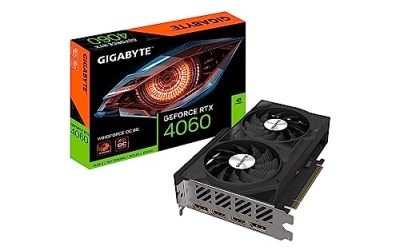
GIGABYTE GeForce RTX 4070 Super WINDFORCE OC 12G
- Best for: Editors who want strong CUDA performance and fast memory from the last generation.
- GPU: NVIDIA GeForce RTX 4070 SUPER
- Memory: 12GB GDDR6X, 192-bit
- Cooling: 3X WINDFORCE fans
- Model: GV-N407SWF3OC-12GD
Editors who want strong CUDA performance and fast memory from the last generation.
Stock of last-generation cards varies by seller, so check who is actually selling the card and that it is the new 12G listing, not a Renewed one.
The previous generation still makes a lot of sense for Premiere Pro, because the editing workload rewards CUDA throughput and fast memory more than the newest gaming features. This WINDFORCE OC card brings 12GB of GDDR6X on a 192-bit bus, which is wider and faster than the memory setup on many newer midrange cards, and the three-fan cooler keeps it composed during long renders. It is a sensible way to get near-flagship editing performance without paying for the newest silicon.
XFX Speedster QICK319 RX 7800 XT CORE
- Best for: AMD-based editing builds that need 16GB of memory.
- GPU: AMD Radeon RX 7800 XT
- Memory: 16GB GDDR6
- Architecture: AMD RDNA 3
- Outputs: HDMI, 3x DisplayPort
AMD-based editing builds that need 16GB of memory.
Premiere’s fastest paths are built around NVIDIA CUDA and its hardware encoder, so check that your regular effects and export presets are not CUDA-only before choosing AMD.
Not every editing PC runs NVIDIA, and this is the AMD pick for Premiere Pro users who want generous memory. The RX 7800 XT carries 16GB of GDDR6 on RDNA 3 hardware, so big 4K timelines have room to breathe, and the three DisplayPort outputs plus HDMI make multi-monitor edit bays easy to wire up. Playback and rendering in Premiere are perfectly workable on Radeon hardware, which makes this a fair route for editors already in the AMD ecosystem.
MSI GeForce RTX 3060 Ventus 2X 12G OC
The RTX 3060 remains the budget doorway into GPU-accelerated editing because it pairs a full 12GB of VRAM with NVIDIA’s encoder and CUDA support at an entry-level tier. For 1080p timelines it is more than enough, and it will handle light 4K work if you use proxies and keep effects modest. The Ventus 2X cooler is compact and plain, with twin Torx fans and a short body that drops into older editing PCs without a fight.
Specs
- GPU: NVIDIA GeForce RTX 3060
- Memory: 12GB GDDR6, 192-bit, 15 Gbps
- Interface: PCIe 4.0
- Outputs: HDMI, DisplayPort
- Cooling: Torx Twin Fan, Ampere architecture
Best for: Budget editors cutting 1080p, and light 4K work with proxies.
Watch out for: This is an older Ampere card sold by many third-party sellers now, so compare sellers carefully and expect slower exports than the newer cards above.
ASIN: B08WPRMVWB
Which One Fits Your Situation
You cut 4K YouTube videos against a deadline
Take the ASUS Dual RTX 5060 Ti 16GB. The memory headroom keeps graded 4K timelines playing smoothly, the current NVIDIA encoder shortens your export queue, and the silent fan mode helps if you record voiceovers at the same desk. It is the balanced pick for a one-person channel workflow, and it leaves budget room for the fast storage your footage library needs.
Your timelines are multicam and effects-heavy
The ASUS Prime RTX 5070 earns its place here. Multicam angles, noise reduction and stacked effects all lean on raw GPU throughput, and the stronger Blackwell chip with a triple-fan cooler built for sustained loads will hold up through long render sessions better than the smaller cards in this guide. That sustained cooling matters when renders run for hours.
You are upgrading an older editing PC on a budget
Start with the MSI RTX 3060 12GB if the machine mostly cuts 1080p, since it adds CUDA acceleration and a proper encoder for very little fuss. If the older PC already has a solid power supply and you can stretch further, the Gigabyte RTX 4070 Super is the bigger jump and will stay useful much longer.
You want an AMD build with two or three monitors
Choose the XFX RX 7800 XT. Its 16GB of memory covers large timelines, and the three DisplayPort outputs make a two-monitor edit bay plus a preview display straightforward. Just confirm your everyday effects do not depend on CUDA-only paths before you commit to the switch. The card also runs cool and steady through long overnight exports.
Common Mistakes
- Buying an 8GB card for 4K editing because the GPU name sounds fast, then fighting dropped frames once grades and titles stack up.
- Confusing the 8GB and 16GB versions of the same card, which often share almost identical listing titles.
- Assuming a gaming benchmark ranking predicts Premiere Pro performance, when VRAM and the hardware encoder matter more for editing.
- Forgetting to check card length and slot width, then finding the new GPU covers a slot the capture card or Wi-Fi card was using.
- Skipping the power supply check, especially when moving from an entry-level card to a 4070 Super or 5070 class card.
Frequently Asked Questions
How much VRAM does Premiere Pro actually need for 4K?
For straightforward 4K cuts, 12GB is a workable floor, and it is what most of the cards in this guide carry. Once you add multicam angles, Lumetri grades, titles and noise reduction, 16GB gives noticeably more headroom before playback quality drops. Editors who mostly cut 1080p can work comfortably with less, but there is little reason to buy below 12GB now.
Is NVIDIA or AMD better for Premiere Pro?
NVIDIA has the edge for most editors because Premiere’s GPU-accelerated effects run on CUDA and its H.264 and H.265 hardware encoding is deeply integrated into the export path. AMD cards like the RX 7800 XT still edit and render well, and their larger memory pools are attractive, but check your specific effects and presets for CUDA dependencies first.
Does the graphics card matter more than the CPU for exports?
They split the work. The CPU feeds the timeline and handles decoding for many codecs, while the GPU accelerates effects and, on NVIDIA cards, takes over H.264 and H.265 encoding. A strong GPU on a weak CPU still stalls, and the reverse is also true. For a balanced editing PC, pair any card here with a modern multi-core processor and fast storage.
Can I edit 4K footage on the RTX 3060?
Yes, with realistic expectations. The 12GB of VRAM is the reason it works at all: simple 4K timelines play back fine, and proxies make heavier projects manageable. Where you will feel the older Ampere hardware is export time and effects rendering, both of which run noticeably slower than on the 4070 Super or the 50-series cards in this guide.
More from Amazon
Programs that pair well with the guide above. Offers and eligibility are set by Amazon and may change.
Free shipping on eligible items, Prime Video and more. Eligible new members can start with a free trial.
Start a Prime free trialAd-free music streaming. Eligible new subscribers can start with a free trial.
Try Music Unlimited freeA Prime membership for ages 18-24 with a trial period. Eligibility is set by Amazon.
See Prime for Young AdultsAudiobooks and podcasts to listen to on the go. Eligible new members can start with a free trial.
Try Audible freeAs an Amazon Associate we earn from qualifying purchases.