Key takeaways
- Build a balanced PC config by target: GPU-first tiers for 1080p, 1440p and 4K gaming, with CPU, RAM, storage and power guidance for streaming too.
A PC configuration is a balance problem, not a shopping list. The parts only make sense together, and they only make sense against two fixed points: the monitor already on your desk and the games you actually play most. A build chosen without those anchors usually ends up lopsided — a powerful graphics card held back by a weak processor, or an expensive processor feeding a screen that can never show what it produces. This guide treats configuration as a set of decisions in a deliberate order, so each part earns its place.
The framework below suits three groups: first-time builders choosing every part from scratch, owners of an aging machine deciding whether to upgrade or start over, and players who also stream or record from the same PC. Configurations are described by resolution target and component class rather than by cost, because the right balance matters more than any single part, and the same tier logic holds whatever the parts happen to cost when you order them.
Quick Picks
As an Amazon Associate we earn from qualifying purchases.
How to Choose
Start From Your Monitor and Your Games
Every configuration decision flows from the display. A 1080p screen at 60 Hz asks very little of a graphics card, while a 1440p high-refresh panel or a 4K display multiplies the pixel load several times over, and the graphics card carries nearly all of that extra work. Refresh rate matters too: chasing very high frame rates shifts demand toward the processor, because the CPU has to prepare each frame. Write down your resolution, your refresh rate and your two or three most-played games before looking at any part, and judge every later choice against that short list.
Give the Graphics Card the Largest Share
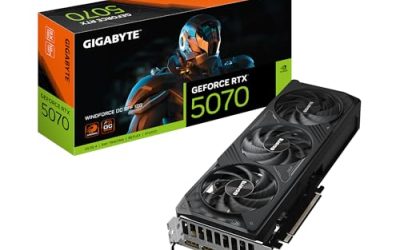
In a gaming configuration the graphics card is the spine of the build, and experienced build guides consistently assign it the largest single share of the parts budget — roughly somewhere in the 35 to 50 percent band, with sources differing on the exact edges of that range. Treat that band as approximate share guidance, not a rule carved in stone. The practical sequence is simple: pick the graphics card that hits your resolution and refresh target first, then build everything else around it. Reversing that order is how configurations end up with a costly processor and a graphics card that cannot fill the screen.
Match the Processor to the Card, Not the Reverse
Once the graphics card is chosen, the processor’s job is to keep it fed. The sensible pick is the smallest CPU that does not bottleneck your card at your target resolution — no more, no less. Processor demand actually softens as resolution rises, because the graphics card becomes the limiting factor, and it grows again when you chase very high refresh rates. For most gaming configurations a current 6-core or 8-core processor in the Ryzen 5 or Core i5 class is the balanced match. Cache-heavy X3D-class processors sit at the top of the gaming tier for players whose frame rates are CPU-limited.
Size Memory, Storage and Power for the Whole Build
The supporting parts decide whether a configuration feels finished. Sixteen gigabytes of RAM is the working floor for a gaming PC today, and 32 GB is the right call if you multitask, stream or create content alongside games; on current platforms that memory should be DDR5. For storage, a 1 TB NVMe SSD is the baseline configuration, stepping up to 2 TB at the upper tiers where game libraries grow quickly. Finally, size the power supply from the combined draw of the graphics card and processor, then add roughly 20 to 30 percent headroom — and buy quality over headline wattage, because the PSU is the one part never to cheap out on.
The Configuration Tiers
Entry Configuration: 1080p
The entry tier targets 1080p play: esports titles at high frame rates and lighter AAA games at medium-to-high settings. The balanced recipe is a current 6-core processor in the Ryzen 5 or Core i5 class, an entry-to-mid-range graphics card chosen for 1080p, 16 GB of DDR5 memory and a 1 TB NVMe SSD. Nothing here is wasted, because at 1080p the screen itself is the ceiling. This is also the natural starting configuration for a first build, since every part class can be upgraded later without replacing the whole machine at once.
Mid Configuration: 1440p High Refresh
The mid tier is built around a 1440p monitor with a high refresh rate, the combination most gaming desks are moving toward. The graphics card steps up a class — it does the heavy lifting at this resolution — supported by a 6-core or 8-core processor, 32 GB of DDR5 memory and 1 to 2 TB of NVMe storage. That memory and storage headroom is what separates this tier from the entry build in daily use: bigger game installs, more background apps and a capture or chat program running beside the game all stop competing for the same limited resources.
Enthusiast Configuration: 4K
At 4K the graphics card dominates the configuration more than at any other tier, so this build starts with a flagship-class card and works downward. Behind it sits a top gaming processor — an X3D-class part is the natural match — with 32 to 64 GB of DDR5 memory and 2 TB of fast NVMe storage. The power supply needs the most headroom here, sized generously above the combined draw of the two hungriest components. Every other choice in this tier exists to make sure the flagship card is never the part waiting on something else.
Platform and Upgrade Path
A configuration should be bought with its second version in mind. AMD’s AM5 socket has processor support running through 2027 and beyond, which makes it the upgrade-friendly platform choice: a later CPU can drop into the same motherboard. The normal upgrade rhythm is a graphics card swap in roughly three years, so choose a standard ATX case with room for longer cards and a power supply with headroom beyond today’s parts. A build planned this way ages in stages — card first, perhaps processor later — instead of becoming obsolete all at once.
Prebuilt or Self-Chosen Configuration
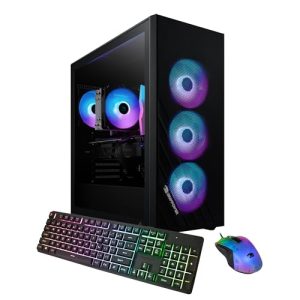
A prebuilt desktop trades a higher total outlay for one warranty covering the whole machine and zero assembly time, and ready-made streaming desktops are a legitimate route for buyers who value that simplicity. A self-chosen configuration trades your time for balance: every part is picked for your monitor and your games, and the upgrade path stays open. Whichever route you take, run the parts list through PCPartPicker, the standard free compatibility check, before ordering. Components and prebuilts alike are sold through Amazon US, Newegg and manufacturer stores.
Which One Fits Your Situation
You Play Competitive Titles at 1080p
Fast, light games on a 1080p high-refresh monitor reward frame rate over pixel count, and the entry configuration is shaped exactly for that. Its 6-core processor keeps frame delivery consistent in CPU-sensitive esports titles, while the entry-to-mid-range graphics card is never the bottleneck at this resolution. Spend your attention on the monitor’s refresh rate rather than on a bigger card, and keep 16 GB of memory as the floor even here.
You Just Moved to a 1440p Monitor
A new 1440p high-refresh screen is the most common reason an older PC suddenly feels slow, and the mid configuration is the direct answer. The stronger graphics card class carries the higher pixel load, and 32 GB of memory plus up to 2 TB of storage stop the rest of the system from becoming the next bottleneck. If your current machine has a recent platform, this tier may be reachable with a card and memory upgrade alone.
You Stream From the Same PC You Play On
Streaming shifts the balance of any tier. Encoding the broadcast has to come from somewhere: either a stronger processor with more cores to spare, or the hardware encoder built into the graphics card. Build that choice in from the start rather than bolting it on later, and favour 32 GB of memory so the game, the streaming software and your chat tools are not fighting over the same space while you are live.
You Play Simulation, Strategy or MMO Games
These genres are the exception to the GPU-first rule of thumb. Large simulations, grand strategy and busy MMO hubs lean heavily on the processor and its cache, so a configuration for them should weight the CPU a step higher than the tier recipes above suggest — an X3D-class part earns its place here even below 4K. Keep the graphics card matched to your resolution, but do not starve the processor to afford one card class higher.
Common Mistakes
- Choosing parts before deciding the resolution and refresh target, so the configuration is balanced for a monitor you do not own.
- Overspending on the processor while starving the graphics card, which leaves the most important gaming component underpowered for its screen.
- Buying a cheap power supply with just enough headline wattage and no headroom, risking instability now and blocking a future graphics card upgrade.
- Saving money with 8 GB of memory or a mechanical hard drive as the main storage, both of which fall below the working floor of a modern gaming configuration.
- Ordering every part without a compatibility check, then discovering the processor, motherboard socket and memory generation do not match.
Frequently Asked Questions
How Much of the Budget Should the Graphics Card Take?
Build guides generally place the graphics card somewhere in the 35 to 50 percent band of the total parts budget, with sources differing on the exact edges. Treat it as approximate guidance: pick the card that meets your resolution and refresh target first, then fit the remaining parts around it, rather than forcing the numbers to land on a precise share.
Is 16 GB of RAM Enough for a Gaming PC?
Sixteen gigabytes is the working floor and remains fine for a focused gaming build, especially at the entry tier. Step up to 32 GB if you stream, create content, keep many applications open or play the largest modern titles, and choose DDR5 on current platforms. Memory is also one of the easiest later upgrades if the motherboard has free slots.
Should I Build My Own Configuration or Buy a Prebuilt?
A prebuilt gives you one warranty and no assembly, at a higher total outlay for equivalent parts. Choosing your own configuration takes more time but produces a balance matched to your monitor and games, with a clearer upgrade path. Neither is automatically better; the honest answer depends on whether you value convenience now or flexibility over the machine’s life.
Which Part Should I Upgrade First in a Few Years?
Usually the graphics card. A card swap in roughly three years is the normal upgrade path, and it is exactly why the original configuration should include an ATX case with physical room and a power supply with 20 to 30 percent headroom. On a long-lived platform such as AM5, a processor upgrade can follow later without replacing the motherboard.
More from Amazon
Programs that pair well with the guide above. Offers and eligibility are set by Amazon and may change.
Free shipping on eligible items, Prime Video and more. Eligible new members can start with a free trial.
Start a Prime free trialAd-free music streaming. Eligible new subscribers can start with a free trial.
Try Music Unlimited freeA Prime membership for ages 18-24 with a trial period. Eligibility is set by Amazon.
See Prime for Young AdultsAudiobooks and podcasts to listen to on the go. Eligible new members can start with a free trial.
Try Audible freeAs an Amazon Associate we earn from qualifying purchases.