For most streamers and console players, an external USB card such as the Elgato 4K X is the simplest way to record or stream 4K console gameplay, while a PCIe card like the Elgato 4K Pro suits a desktop builder who wants a steady data path and does not mind opening the case. Buyers who only stream at 1080p should look at cheaper cards that still pass a 4K signal through to the screen. This guide explains how the main options differ, what to check before buying, and which type fits which setup.
Our top picks
 Capture Card
- 【1080P HD High Quality】Capture resolution up to 1080p…
- 【Plug and Play】No driver or external power supply…
- 【Compatible with Multiple Systems】suitable for Windows and Mac…
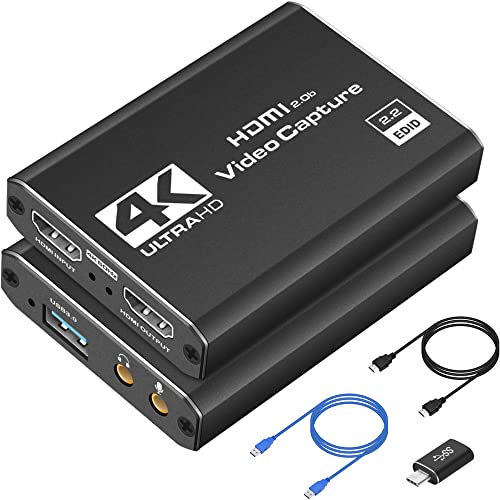 Capture Card 4K HDMI Video Streaming to
- High-Quality Video Capture, 4K HDMI Capture Card Ready:…
- Plug-and-Play USB Capture Card, No Drivers Needed: Designed…
- Universal Compatibility PS5, Xbox, Switch & More: Stream…
| Product | Key specs | |
|---|---|---|
| Capture Card | 【1080P HD High Quality】Capture resolution up to 1080p… 【Plug and Play】No driver or external power supply… 【Compatible with Multiple Systems】suitable for Windows and Mac… | Check price |
 Elgato 4K X Capture Card Elgato 4K X Capture Card | Check price | |
| Capture Card 4K HDMI Video Streaming to | High-Quality Video Capture, 4K HDMI Capture Card Ready:… Plug-and-Play USB Capture Card, No Drivers Needed: Designed… Universal Compatibility PS5, Xbox, Switch & More: Stream… | Check price |
 4K Capture Card Game Capture Card 1080P 4K Capture Card Game Capture Card 1080P | Check price |
As an Amazon Associate we earn from qualifying purchases at no extra cost to you.
At a glance
| Card | Type | Best for | Key stated specs (per maker) | Limits |
|---|---|---|---|---|
| Elgato 4K X | External USB | Console and PC owners who want 4K capture and high-refresh passthrough | The maker lists 4K HDR10 capture and passthrough at high refresh rates, plus variable refresh rate support | Needs a fast USB 3 port; premium tier |
| Elgato 4K Pro | Internal PCIe | Desktop streamers, dedicated capture PCs | The maker lists 4K HDR10 capture with high-refresh passthrough | Needs a free PCIe slot; not portable |
| Elgato 4K S | External USB | 4K60 capture at a more moderate tier | The maker lists 4K60 HDR10 capture and 4K60 passthrough | Passthrough tops out lower than the 4K X |
| Elgato HD60 X | External USB | 1080p streamers with a 4K or high-refresh display | The maker lists 1080p60 capture with 4K60 HDR passthrough and VRR | Captures at 1080p, not 4K |
| AVerMedia Live Gamer Ultra 2.1 | External USB | Buyers who prefer AVerMedia software and drivers | The maker lists 4K capture and 4K passthrough | Read the capture and passthrough table for your exact frame rate |
| Razer Ripsaw HD | External USB | Budget-minded 1080p capture | The maker lists 1080p60 capture with 4K60 passthrough | Older design; no 4K capture |
Specifications change between hardware revisions, so read the maker’s own table for the exact resolution, frame rate and HDR combination you want before ordering.
What “4K capture” actually means
The phrase is used loosely. Two separate numbers matter: what the card can record or send to your streaming software, and what it can pass through to your monitor or TV. A card may pass a 4K high-refresh signal to your display while only capturing 1080p, or capture 4K at 60 frames per second while passing through a higher rate. Always compare capture and passthrough figures separately, and check whether HDR is supported in both paths.
Capture resolution and frame rate
If your goal is video uploads, 4K60 capture is the usual target. If your goal is live streaming on a platform with bitrate caps, 4K capture is often unnecessary, because the platform will downscale or limit what viewers receive. Many streamers capture at 1080p60 or 1440p and keep 4K for local recordings.
Passthrough and variable refresh rate
Passthrough lets you play on a 4K display with no added delay while the card captures a copy. Modern consoles and graphics cards can output high refresh rates and variable refresh rate (VRR). If your display supports these, pick a card whose maker lists the matching passthrough mode, otherwise the card may force a lower setting.
HDR handling
HDR10 capture is supported on several current cards, but recording HDR and then sharing it as standard video usually needs tone mapping. Some capture software offers this, and some editors handle it better than others. If you mostly publish to platforms that display standard dynamic range, check how the software converts the footage.
External versus internal cards
External USB cards
External cards plug into a USB 3 port and work with laptops, which makes them the practical choice for console players and people who move between machines. Reviewers commonly advise using a port directly on the motherboard rather than a hub, since high-bandwidth capture can drop frames on shared connections.
Internal PCIe cards
PCIe cards sit inside a desktop and generally offer a cleaner, more stable data path. They suit a dedicated streaming PC. The trade-off is that you need a compatible slot, enough airflow, and comfort with opening your case. Power down and unplug the PC before installing, and follow the card’s manual.
Fit and compatibility notes
- Cables: You need an HDMI cable rated for the signal you plan to use. A certified high-speed or ultra-high-speed cable is advisable for 4K at high refresh.
- Ports: A USB 3 Gen 1 port is the common minimum for 4K external cards. Some makers recommend faster ports for the top modes.
- Copy protection: Consoles and streaming devices apply HDCP to protected content. Capture cards will not record protected streams, and you should not try to bypass this.
- Operating system: Check that the maker’s software supports your Windows or macOS version. Many cards also work as a standard video device in other apps such as OBS Studio.
- Heat: External cards can get warm during long sessions. Leave space around the unit and avoid stacking items on it.
Budget tiers
Budget tier
Budget cards usually capture at 1080p60 while passing a 4K signal through. They suit new streamers, Switch and older console owners, and anyone who only needs a camera or console feed in a streaming layout. The Razer Ripsaw HD is a long-running example in this class, though availability varies.
Mid-range tier
The mid-range is where 1080p cards with strong passthrough, such as the Elgato HD60 X, and entry 4K60 cards such as the Elgato 4K S sit. They give you modern features like VRR or HDR passthrough without paying for the highest-end capture modes.
Premium tier
Premium cards, including the Elgato 4K X and 4K Pro, aim at users who want 4K HDR capture and high-refresh passthrough in one product. They make sense if you own a high-refresh 4K display and also publish 4K video.
Pick X if …
| If you … | Pick | Why |
|---|---|---|
| Play on console and want a portable 4K option | Elgato 4K X | External, wide passthrough support, works with laptops |
| Stream from a dedicated desktop PC | Elgato 4K Pro | PCIe connection, no USB bandwidth concerns |
| Want 4K60 capture without top-tier passthrough | Elgato 4K S | Lower tier with the main 4K60 features |
| Stream at 1080p but game on a 4K or VRR screen | Elgato HD60 X | Passes the high-quality signal through, captures at stream-friendly resolution |
| Prefer a different software ecosystem | AVerMedia Live Gamer Ultra 2.1 | Alternative vendor with its own tools |
| Need the cheapest working capture | Razer Ripsaw HD or similar 1080p card | Meets basic needs at the lowest tier |
Alternatives to consider
- Built-in console capture: PlayStation and Xbox consoles can record clips and stream directly, which may be enough for casual sharing, though quality and overlay options are limited.
- PC software capture: If you play on the same PC you stream from, GPU-based capture in OBS Studio or the graphics driver’s own tool avoids buying a card at all.
- Cheap HDMI capture adapters: These capture a signal, but they often lack passthrough and are limited to lower frame rates, so they suit presentations rather than gaming.
Software and workflow
Most cards work as a standard video source in OBS Studio and similar tools, and several makers also supply their own capture app for recording, scene layouts and firmware updates. If you plan to edit footage, check which video formats and bitrates the software writes, since heavy files can fill a drive quickly. A fast internal SSD or a dedicated recording drive helps avoid dropped frames during long 4K sessions.
Setup tips
Connect the console to the card’s input and the card’s output to your display. Set the console to a resolution and HDR mode the card supports. In your capture software, choose a bitrate suitable for your encoder and storage, and record a short clip before a long session. Keep firmware and drivers current from the maker’s site, since updates sometimes unlock modes. If the picture flickers, swap the HDMI cable first, then lower the output mode one step.
Frequently Asked Questions
Do I need a 4K capture card to stream in 4K?
Not always. If you stream from the same PC you play on, software capture can handle it. A card is needed mainly when the source is a console or a second PC. Also check your platform’s maximum resolution and bitrate, since many limit what viewers receive.
Is an external or internal card better?
External cards are easier to move and work with laptops. Internal PCIe cards usually give a steadier connection in a dedicated desktop. Choose by your machine and whether you want portability.
Can a capture card record protected content?
No. Content protected with HDCP is blocked from recording by design. Some consoles let you disable HDCP for game output in their settings, but protected streaming apps stay blocked.
Will a capture card add lag when I play?
The passthrough path is designed to show your game on the display with minimal delay, but the capture preview on your PC will lag slightly behind. Play on the passthrough display rather than the PC preview.
Which cable should I use?
Use an HDMI cable that is certified for the bandwidth of your chosen mode. For 4K at higher refresh rates or HDR, an ultra-high-speed certified cable is the safer choice.
Does HDR capture look right on standard displays?
Raw HDR footage can look washed out on standard displays unless it is tone mapped. Check whether your capture software or editor converts HDR to standard dynamic range, and record a short clip before committing to a workflow.