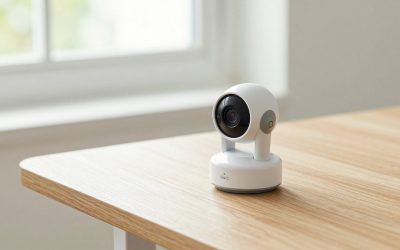
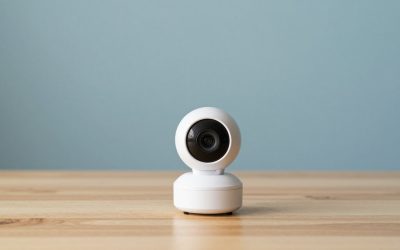
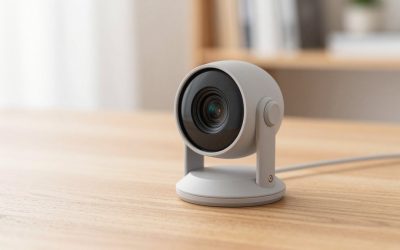
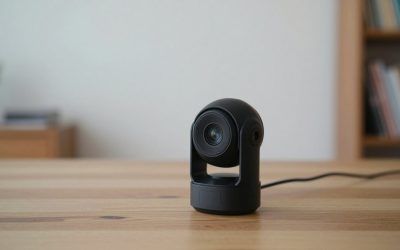
The best webcam for Windows 10 is the Logitech C920, because it uses the standard UVC driver built into Windows and works the moment you plug it in. If you want a sharper picture and a wider view, the Logitech Brio 500 is the upgrade, the Razer Kiyo Pro is best in dim rooms, and the Insta360 Link 2 is the pick for creators who want 4K and automatic tracking. Almost any modern USB webcam works on Windows 10 without installing drivers, so the real decision is about image quality, field of view and price.
Our top picks



As an Amazon Associate we earn from qualifying purchases at no extra cost to you.
A note on Windows 10 in 2026
Microsoft ended regular support for Windows 10 on October 14, 2025. Consumer devices running version 22H2 can still enrol in Extended Security Updates, which Microsoft says run until October 12, 2027, and which cover security fixes only. Webcams keep working because they rely on the in-box USB Video Class (UVC) driver, but vendor software such as Logitech’s may eventually drop Windows 10 support. A webcam you buy now will also work on Windows 11, so it will survive an upgrade.
Quick comparison of webcams for Windows 10
| Pick | Best for | Key specs | Price tier |
|---|---|---|---|
| Logitech C920 / C920S | Best overall, plug and play | 1080p at 30fps, 78 degree view, autofocus, stereo mics, USB-A | Mid |
| Logitech Brio 500 | Best upgrade for calls | 1080p at 30fps, 90/78/65 degree views, light correction, USB-C, privacy shutter | Mid to upper-mid |
| Logitech Brio 100 | Best budget | Entry-level 1080p, fixed focus, privacy shutter | Budget |
| Razer Kiyo Pro | Low light and streaming | 1080p at 60fps, Sony STARVIS sensor, up to 103 degree view, USB-C | Upper-mid |
| Insta360 Link 2 | 4K and tracking | 4K at 30fps, 1/2 inch sensor, AI gimbal tracking, autofocus | Premium |
Best overall: Logitech C920
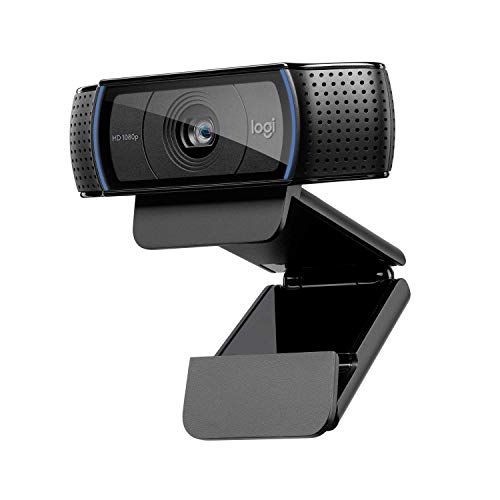
The C920 has been the default recommendation for years. It records 1080p at 30fps with a glass lens, an f/2.0 aperture, a 78 degree field of view, autofocus and dual stereo microphones, per Logitech. On Windows 10 it appears as a standard camera with no setup, and Logitech’s optional software lets you adjust zoom and exposure. Its age shows in dim light and with HDR scenes, but it remains dependable and widely supported by Zoom, Teams, OBS and browsers.
Best upgrade: Logitech Brio 500
Reviewers at Engadget and Tom’s Hardware both name the Brio 500 as the best option for most people. It outputs 1080p at 30fps or 720p at 60fps and gives you three fields of view (90, 78 and 65 degrees), automatic light correction, a Show Mode for presenting desk objects, and a built-in lens cover. It connects by USB-C, so an older PC with only USB-A needs an adapter or the supplied cable type. The mic array is better than the C920’s.
Best budget: Logitech Brio 100
The Brio 100 is an entry-level webcam with fixed focus and a privacy shutter. It is aimed at beginners and is ideal for a spare room or a child’s computer. Low-light performance is modest, so give it a lamp facing you.
Best for dim rooms: Razer Kiyo Pro
The Kiyo Pro uses a 1/2.8 inch Sony STARVIS sensor, shoots 1080p at 60fps, supports HDR and offers 103, 90 and 80 degree fields of view, according to Razer. Its large sensor handles dim rooms better than cheaper cameras, and Synapse gives manual controls on Windows. It is mainly worth the money for evening streaming and gaming.
Best for creators: Insta360 Link 2
The Link 2 offers 4K at 30fps, HDR, autofocus down to 10 cm, an AI-tracking gimbal, gesture control and a noise-cancelling mic. Its 1/2 inch sensor is large for a webcam. It is overkill for meetings but excellent for tutorials, desk demos and streams where you move around.
How to choose and set up on Windows 10
- Pick a resolution to match your use. Video calls compress to 720p or 1080p, so 1080p is enough. Choose 4K only for recording or cropping in post.
- Choose a field of view. A 65-78 degree lens frames one person. A 90 degree lens fits two people, but shows more room.
- USB port. Use a USB 3.0 port directly on the PC, because hubs can limit bandwidth. A 1080p60 stream uncompressed would need about 3 Gbps (1920 x 1080 x 60 x 24 bits), so cameras compress video internally, and a weak hub can still cause dropouts.
- Privacy. Go to Settings, Privacy, Camera, and switch on camera access for the device and for the apps you want.
Troubleshooting if Windows 10 does not detect it
- Try another USB port and cable and avoid hubs, to rule out hardware faults.
- Open Settings, Privacy, Camera, and enable camera access and app access.
- In Device Manager, find the webcam under Cameras or Imaging devices and choose Update driver, then pick “USB Video Device” from the list to use the built-in driver.
- Reset the Camera app in Settings, Apps, Camera, Advanced options.
- Temporarily disable antivirus webcam protection to test.
If the camera does not appear in Device Manager at all, the problem is physical or a BIOS setting, not permissions.
Decision matrix
| Your situation | Pick |
|---|---|
| Home or office video calls | C920 or Brio 500 |
| Tight budget, light use | Brio 100 |
| Streaming in a dim room | Razer Kiyo Pro |
| Recording tutorials in 4K | Insta360 Link 2 |
Webcam settings worth changing on Windows 10
Windows 10 itself offers few camera controls, so use the settings inside your meeting app or the webcam maker’s software. The most useful adjustments are listed below.
- Exposure and white balance. Automatic modes hunt when you move or when light changes. Lock them manually once the image looks right, especially for streaming.
- Anti-flicker. Set 50Hz or 60Hz to match your mains frequency. This removes banding from artificial lights.
- Field of view and zoom. Choose a narrower view to keep the background out of frame, and zoom slightly instead of cropping later.
- Frame rate. 30fps is enough for calls. Use 60fps only for streaming and only in bright light, because low light forces the camera to lower the frame rate.
Choosing between the built-in laptop camera and a USB webcam
Most older Windows 10 laptops have a 720p camera with a tiny sensor. A USB webcam usually has a much larger sensor and better lens, so it produces a clearer image, particularly in dim rooms. A built-in camera is fixed to the lid, whereas a USB webcam on a monitor or tripod can be placed at eye level, which looks more natural. If you use a laptop with a closed lid and an external monitor, an external webcam is the only option.
Finally, consider microphones. Webcam mics are fine for meetings but pick up keyboard clatter and room echo. If your calls matter, add a headset or a USB microphone and select it as the default in Windows sound settings. Combined with a good webcam, that makes a bigger quality difference than any other upgrade.
Frequently Asked Questions
Do webcams need drivers on Windows 10?
Most do not. UVC webcams use the driver built into Windows. Manufacturer software only adds optional controls.
Will my webcam work after I upgrade to Windows 11?
Yes. UVC webcams work on both. Check the maker’s software if you use advanced features.
Why does Windows 10 say my camera is blocked?
A privacy setting or antivirus feature is usually denying access. Enable camera access in Settings, Privacy, Camera.
Is 4K worth it for Zoom or Teams?
Not for calls, which cap resolution lower. It helps for recording and cropping.
Is it safe to use Windows 10 for video calls?
Without updates, security risk grows. Consider enrolling in Extended Security Updates or upgrading to Windows 11 if your PC supports it.