Key takeaways
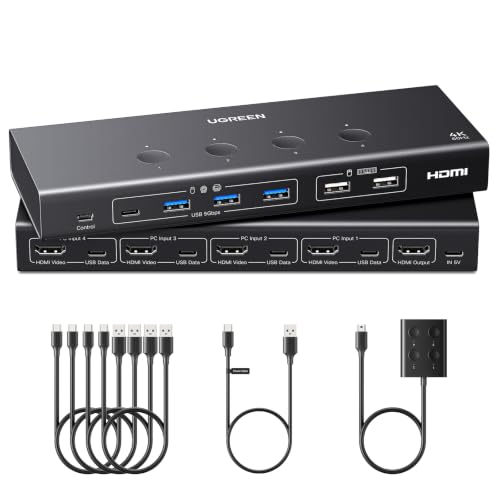
- Budget: Basic two-port HDMI KVMs from brands such as UGREEN and Cable Matters. Fine for one monitor and standard office use.
- Mid-range: IOGEAR, StarTech and TESmart offer more ports, dual-monitor support, EDID emulation and sturdier build quality.
- Premium: Belkin, ATEN and Tripp Lite models with USB-C, advanced USB sharing, high refresh rates or security certifications.
If you run one keyboard, mouse and monitor across two computers, a simple two-port HDMI or DisplayPort KVM from a brand such as TESmart, UGREEN, IOGEAR or StarTech is enough. If you run dual monitors, 4K at high refresh rates, USB-C laptops, or a shared desk with peripherals, you need a more capable model from makers such as Belkin, ATEN, Tripp Lite (Eaton), or TESmart’s higher tiers. The right KVM is decided by your video standard, resolution, USB needs and number of computers, not by brand alone.
Our top picks


As an Amazon Associate we earn from qualifying purchases at no extra cost to you.
At a Glance: KVM Switch Types
| Type / Example brands | Best for | Key points makers list | Limits |
|---|---|---|---|
| 2-port single-monitor HDMI KVM (UGREEN, IOGEAR, Cable Matters) | Home office with a desktop and a laptop | 4K at 60 Hz on many models, USB ports for keyboard and mouse, hotkey or button switching | Usually no USB-C video; some limit refresh rate at 4K |
| DisplayPort KVM (StarTech, ATEN, Tripp Lite) | High-refresh gaming monitors and workstations | DisplayPort versions vary; check listed resolution and refresh rate | Fewer budget options than HDMI |
| Dual-monitor KVM (TESmart, ATEN, IOGEAR) | Two screens shared between two or more PCs | Two video outputs, extended or mirrored display support listed by some makers | Costs more; EDID emulation matters for window layout |
| USB-C / Thunderbolt KVM or dock-style (Belkin, ATEN) | Laptop users with USB-C video | Video, USB and sometimes power delivery over one cable on some models | Laptop compatibility depends on the port supporting video output |
| Multi-port rack or desktop KVM (TESmart 4, 8, 16 ports; ATEN; Tripp Lite) | Servers, labs, multiple computers | Several inputs, sometimes RS-232 or IP control | Larger, pricier, more setup |
What to Look For
Video standard and resolution
Start with how your monitor connects. HDMI KVMs are the most common and affordable. Many lists say 4K at 60 Hz, while HDMI 2.1 models listing 4K at 120 Hz or higher are a smaller group aimed at gamers. DisplayPort KVMs suit monitors that use DisplayPort for higher refresh rates. Do not assume the switch supports the maximum your monitor can do: read the maker’s listed resolution and refresh rate, and note whether HDR or variable refresh rate is mentioned. Cables count as well, since a high-bandwidth signal needs a cable rated for it.
USB handling
The K and M in KVM mean your keyboard and mouse follow the video. Look at how many USB ports the switch offers and whether they are USB 2.0 or USB 3.x. A few KVMs add a separate peripheral-sharing hub for a webcam, headset or storage drive. If you need high-speed storage or a high-bandwidth webcam, a USB 3.x hub is useful, but sharing devices through a KVM is not always as fast as a direct connection. High-polling-rate gaming mice and some wireless dongles may behave differently through a switch, so reviewers often suggest reading the maker’s compatibility notes.
EDID emulation and window layout
EDID is the information your monitor sends to the computer. When you switch away, a computer without EDID emulation may think the monitor disconnected and rearrange your windows. Better KVMs emulate EDID so that the layout stays put. If you run multiple monitors or keep many windows open, look for this feature in the spec listing.
Switching method
Options include front-panel buttons, keyboard hotkeys, an external remote, and automatic switching tied to the keyboard or mouse. Buttons are the most dependable, hotkeys save desk space, and a wired remote helps if the box sits behind the monitor. Some makers also list mouse-based switching, but this is most reliable with simple setups.
Operating system and device compatibility
Most KVMs work with Windows, macOS and Linux, but there are caveats. Mac computers, especially recent ones, handle multi-display setups and HDCP differently, and some KVMs list limits on macOS display modes. Gaming consoles and streaming boxes may need HDCP support. If you share a laptop with USB-C video, check that its port actually outputs video and that the KVM lists compatible USB-C modes.
Power and heat
Many KVMs ship with a power adapter, and some are bus-powered. Use the supplied adapter, and keep the unit ventilated. If you add USB-C power delivery through a KVM, rely on the maker’s wattage figure and your laptop’s charger needs. Electrical issues should be handled in line with the manual; if something overheats or smells, unplug it.
Security
For business or government use, makers such as ATEN and Tripp Lite sell secure KVMs with isolation features and certifications aimed at regulated environments. If you handle sensitive data across separate networks, a consumer KVM is not designed for that job.
Budget Tiers
- Budget: Basic two-port HDMI KVMs from brands such as UGREEN and Cable Matters. Fine for one monitor and standard office use.
- Mid-range: IOGEAR, StarTech and TESmart offer more ports, dual-monitor support, EDID emulation and sturdier build quality.
- Premium: Belkin, ATEN and Tripp Lite models with USB-C, advanced USB sharing, high refresh rates or security certifications.
Pick X If… Decision Table
| Pick this | If you… |
|---|---|
| 2-port HDMI single-monitor KVM | Share one monitor and keyboard between a desktop and a laptop |
| Dual-monitor KVM | Run two displays and need window layouts to stay put |
| DisplayPort or HDMI 2.1 KVM | Use a high-refresh gaming monitor |
| USB-C KVM | Switch between USB-C laptops and want one-cable docking |
| 4 to 16 port KVM | Manage several computers, such as a lab or small server room |
| Secure KVM | Work in a regulated environment that requires isolation |
Setup Tips
- Use the cables supplied by the maker or cables rated for your resolution; weak cables cause flicker or blank screens.
- Connect the video, USB and power in the order the manual lists, and update firmware if the maker provides updates.
- Put the KVM where the buttons or remote are easy to reach.
- Label each input so the right computer starts when you switch.
- If a monitor shows no signal after switching, reseat the cable and turn the KVM off and on before assuming a fault.
Alternatives
- Monitor with a built-in KVM: Many modern monitors from Dell, LG and others include USB-C input and a built-in KVM function, which removes an extra box.
- Software sharing (Logitech Flow, Synergy or Barrier-style apps): Shares a keyboard and mouse over a network, but does not switch video.
- Multi-input monitor with picture-in-picture: A monitor with several inputs can switch sources by itself, though the keyboard and mouse remain separate unless you also use a USB switch.
- USB switch: If video is handled separately, a simple USB switch from brands such as UGREEN or Cable Matters shares keyboards and mice.
Common Mistakes to Avoid
Buyers often choose by port count and ignore video standard, ending up with HDMI when the monitor uses DisplayPort. Others forget that dual-monitor setups need a dual-output KVM and that a single-output model will not extend the desktop. Cheap cables are a frequent cause of black screens. Some people expect wireless dongles, docks or specialty gaming mice to behave the same through a switch, which is not guaranteed. Mac users sometimes overlook display mode limits listed by makers. Finally, a KVM is a convenience tool: if your needs are only to share a mouse and keyboard, software sharing or a simple USB switch may suit you better and cost less.
Frequently Asked Questions
Will a KVM switch reduce image quality?
A properly rated KVM should pass the signal at the resolution and refresh rate the maker lists. Problems usually come from underrated cables or from exceeding what the switch supports. Check the listed specifications against your monitor before buying.
Can a KVM switch work with a laptop?
Yes, if the laptop has an HDMI, DisplayPort or video-capable USB-C port. Some laptops need an adapter. For USB-C, only ports that carry video will work with a USB-C KVM.
Why do my windows move around when I switch?
The computer may think the monitor was unplugged. KVMs with EDID emulation keep the monitor information active and reduce this. Look for the feature if you use multiple displays.
Do KVM switches support 4K at 144 Hz?
Only some do, and these models usually list HDMI 2.1 or a recent DisplayPort version. Most basic KVMs list 4K at 60 Hz. Read the maker’s specifications and use the right cable.
Can I share USB devices like a webcam through a KVM?
Many KVMs have extra USB ports for peripherals. Speeds and device support vary, and some high-bandwidth devices work best connected directly to a computer. Read the maker’s USB notes before buying.
Is a KVM safe for sensitive work?
Consumer KVMs are not designed for isolating confidential networks. For regulated environments, look for secure KVMs from makers such as ATEN or Tripp Lite and follow your organization’s policy.