Key takeaways
- Budget tier: Lowest cost, 4K60 on HDMI 2.0 at best, basic USB 2.0 sharing, little or no EDID control. Suits light use.
- Mid-range: Reliable 4K60, EDID emulation, USB 3.x on some models, hotkeys and remote options. Best value for most home offices.
- Premium: Dual-monitor support, higher refresh rates, stronger build, firmware updates and warranty support. Worth it for daily professional use.
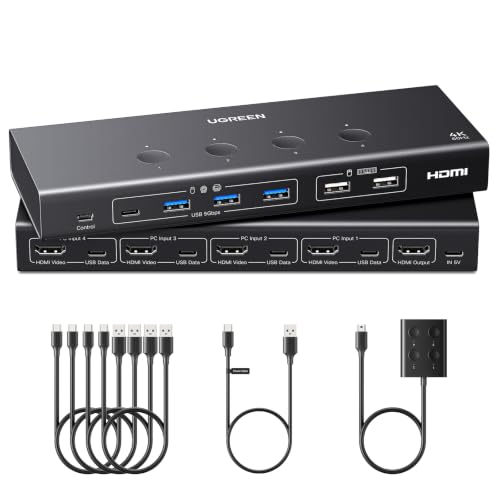
The best 4K KVM switch is the one whose video input standard, refresh rate and USB handling match your PC and monitor: a DisplayPort 4K60 model from a business-focused brand such as ATEN suits a work-and-gaming desk, an HDMI 2.0 model from TESmart or UGREEN suits a budget two-PC setup, and a premium dual-monitor unit suits creators who move between a workstation and a laptop all day. The sections below explain how to read the specifications makers publish, which product lines fit which buyer, and where each type falls short.
Our top picks



As an Amazon Associate we earn from qualifying purchases at no extra cost to you.
What a 4K KVM Switch Actually Does
A KVM switch lets one keyboard, mouse and monitor control two or more computers. Pressing a hotkey or a front-panel button changes which computer feeds the display and which computer receives keystrokes. Many current models also share USB peripherals such as webcams, headsets, microphones and storage drives, which is why they are popular with streamers and remote workers who juggle a gaming PC and a work laptop.
The word “4K” on a box only tells you the maximum resolution. The refresh rate, colour handling and HDR support are separate details, and they are where cheap switches differ most from good ones. A switch that passes 4K at 30 Hz will make the cursor feel sluggish on a desktop, even though it technically supports the resolution.
At a Glance: Product Lines Compared
| Product line | Best for | Video input type (as listed by makers) | Limits |
|---|---|---|---|
| ATEN CS1922 / CS1924 family | Office-grade reliability, two or four PCs | DisplayPort with 4K output, USB 3.x peripheral sharing on the KVMP versions | Premium tier; DisplayPort cables are required for every connected PC |
| TESmart HDMI KVM line | Budget to mid-range multi-PC desks | HDMI, with 4K60 variants and some 4K120 variants on higher models | Features vary widely across models; read the exact spec sheet |
| UGREEN and similar budget brands | Simple two-PC home setups | HDMI 2.0 class, 4K60 listed on newer units | Fewer extras such as EDID control, limited USB bandwidth |
| Belkin Universal / Secure KVM line | Corporate and security-sensitive desks | DisplayPort and HDMI options | Security-focused designs add cost and strict peripheral rules |
| Eaton / Tripp Lite KVM line | Professional desks and small racks | HDMI or DisplayPort models, 4K60 on several | Aimed at business buyers; gaming features are not the focus |
Model numbers and port counts change often, so treat the table as a map of product families rather than a final shortlist. The maker’s product page is the only reliable place to confirm the exact refresh rate for a given model.
The Specifications That Matter Most
Video standard: HDMI versus DisplayPort
HDMI 2.0 handles 4K at 60 Hz, which is enough for office work, video, and most console and PC gaming at 60 frames per second. HDMI 2.1 is needed for 4K at 120 Hz or higher with full bandwidth, and KVM switches that offer it are fewer and generally cost more. DisplayPort 1.4 can also carry 4K at 120 Hz or beyond on many monitors, and DisplayPort is common on professional monitors and graphics cards. Look at the ports on both your computers and your monitor first, then choose the switch type that avoids adapters.
HDR, chroma and HDCP
Some switches list “4:4:4” chroma support, which keeps text sharp on a PC desktop. Switches that only support 4:2:0 can make small text look soft. If you watch protected streaming content through the switch, look for HDCP support; without it, some content can show a blank screen. HDR passthrough is listed only on certain models, and monitors may need EDID settings adjusted when switching.
EDID emulation
When you switch away from a PC, a KVM without EDID emulation can make that computer think the monitor was unplugged. Windows may then rearrange your open windows or reset the resolution. Good KVMs store the monitor’s identity and present it to every connected computer so your desktop layout stays put. This feature is stated by the maker on better models and is one of the strongest reasons to pay more than the lowest tier.
USB hub speed and device sharing
Many 4K KVMs share a USB 2.0 hub, which is fine for a keyboard, mouse and headset but slow for a webcam at higher resolutions or a fast external drive. KVMP models, such as ATEN’s KVMP naming, add USB 3.x ports for shared peripherals. If you use a 4K webcam or a capture device, look for a USB 3.x peripheral hub and read the maker’s note about bandwidth when several devices are active.
Switching methods
Hotkeys, front-panel buttons and wired remotes are the usual options. Hotkeys are convenient but can clash with game or application shortcuts. A physical button or a remote mounted on the desk is easier for people who switch often.
Picks by Buyer Type
For work and gaming on one 4K monitor (mid-range)
A two-port DisplayPort or HDMI 2.0 switch with USB 3.x sharing and EDID emulation covers this case. ATEN’s two-port 4K lines and TESmart’s higher models are the usual candidates. Reviewers who cover these types of switches generally point to EDID handling and USB peripheral sharing as the deciding features, rather than the number of ports.
For a small budget (budget tier)
Entry-level HDMI switches from TESmart, UGREEN and similar makers suit a plain home office where a desktop and a laptop take turns. They typically lack advanced EDID control and use a slower USB hub, so they are best when you use only a keyboard and mouse through the switch. If a switch lists 4K at 30 Hz only, skip it for desktop use.
For creators with several computers (premium tier)
Premium multi-port or dual-monitor switches from ATEN, Belkin and Eaton handle two monitors per computer, higher bandwidth and more reliable switching. They cost noticeably more, which is only worthwhile if you actually need dual displays or four-plus computers on one desk.
For secure environments
Belkin’s secure KVM family is designed to isolate computers, restrict peripheral types and meet certifications stated by the maker. These are meant for regulated workplaces, and a home buyer rarely needs them. Their strict peripheral rules mean a gaming mouse or webcam may not work.
Pick X If… Decision Table
| Pick this type | If you… |
|---|---|
| DisplayPort 4K60 KVMP (ATEN-style) | use a business monitor with DisplayPort and want shared USB 3.x ports |
| HDMI 2.0 mid-range (TESmart-style) | run PCs and a console at 4K60 and want a lower cost |
| HDMI 2.1 or high-refresh model | want 4K at 120 Hz or beyond and own a matching monitor and GPU |
| Budget HDMI two-port (UGREEN-style) | need only a keyboard and mouse shared between two computers |
| Dual-monitor premium unit | run two displays per computer |
| Secure KVM (Belkin-style) | work in a regulated environment with isolation rules |
Cables, Compatibility and Setup Notes
Every connected computer needs its own video cable and USB cable to the switch, so a four-port KVM can require eight cables on the desk. Cable quality matters: a loose or under-rated HDMI cable can cause flicker or no signal at 4K. Makers often supply short cables for the first ports or list the cable length limits; longer runs can reduce reliability at high refresh rates, so choose certified cables that match the version the switch uses.
Laptops add a few wrinkles. Many laptops send video through USB-C, so you may need a USB-C to HDMI or DisplayPort cable or adapter. Some adapters limit refresh rate. Docking stations can also conflict with a KVM, because the dock and the switch may both try to manage the display.
Wireless keyboard and mouse dongles can work through a KVM, but some switches handle high-polling gaming mice poorly. If you use a gaming mouse, read the maker’s note on polling rates, or plug the dongle directly into a separate USB port.
Always update firmware if the maker provides it, and use the power adapter supplied with the switch. Many KVMs need external power to run EDID emulation and USB hubs reliably.
Trade-offs by Budget Tier
- Budget tier: Lowest cost, 4K60 on HDMI 2.0 at best, basic USB 2.0 sharing, little or no EDID control. Suits light use.
- Mid-range: Reliable 4K60, EDID emulation, USB 3.x on some models, hotkeys and remote options. Best value for most home offices.
- Premium: Dual-monitor support, higher refresh rates, stronger build, firmware updates and warranty support. Worth it for daily professional use.
Alternatives to a Full KVM
A monitor with built-in KVM
Several monitors from brands such as Dell, LG and Samsung include a built-in USB-C or USB hub with KVM-style switching between two inputs. This removes a box from the desk and can be tidier, but you are limited to the ports on that monitor.
A USB switch plus a monitor input button
If you share only a keyboard, mouse and headset, a USB peripheral switch with a separate monitor input button costs far less than a full 4K KVM. The trade-off is pressing two buttons instead of one.
Software sharing tools
Programs that share a mouse and keyboard over a network, such as Synergy or Mouse Without Borders, avoid hardware entirely. They need both computers running and on the same network, and they cannot share a single monitor, so they suit multi-monitor desks rather than a single-screen setup.
Frequently Asked Questions
Will a 4K KVM switch reduce picture quality?
A well-built switch should pass the signal without visible loss at the resolution and refresh rate the maker lists. Problems usually come from cables, chroma subsampling or a switch that supports only 30 Hz. Matching the switch specification to your monitor avoids most issues.
Do I need HDMI 2.1 for 4K gaming?
Only if you want 4K at 120 Hz or beyond with full colour. HDMI 2.0 is enough for 4K at 60 Hz. Make sure both your graphics card or console and your monitor support the higher standard before paying more for it.
Can I use two monitors with one KVM?
Yes, but you need a dual-monitor KVM, which has two video outputs and two inputs per computer. These cost more than single-monitor models and need two video cables per computer.
Why does my screen go black when I switch computers?
The monitor needs a moment to detect the new signal, and a KVM without EDID emulation can also cause the computer to lose its display layout. Models that store the monitor identity usually switch faster and keep window positions.
Is a KVM switch safe for sensitive work?
Standard consumer switches do not isolate computers. If your employer or industry sets security rules, use a switch certified for that purpose and follow the maker’s setup guidance.
Can I share a webcam or microphone through a KVM?
Many models share USB devices, but bandwidth is limited, especially on USB 2.0 hubs. For a 4K webcam, pick a switch with USB 3.x ports and read the maker’s notes on supported device types.