For most console streamers who want 1080p60 or 4K60 capture with HDMI passthrough, an external USB card such as the Elgato HD60 X or 4K X, or an AVerMedia Live Gamer series card, is the easiest choice, while PC builders who want low-latency internal capture can look at PCIe cards such as the Elgato 4K60 Pro MK.2 or AVerMedia Live Gamer 4K cards. The deciding factors are the resolution you capture, the resolution and refresh rate you want to pass through to your display, and whether your PC has a spare PCIe slot or fast USB port.
Our top picks
 Capture Card
- 【1080P HD High Quality】Capture resolution up to 1080p…
- 【Plug and Play】No driver or external power supply…
- 【Compatible with Multiple Systems】suitable for Windows and Mac…
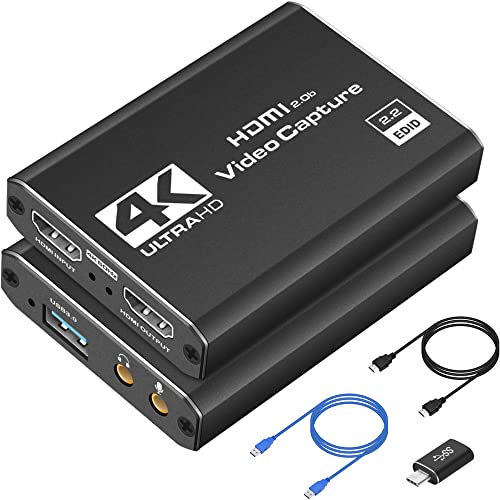 Capture Card 4K HDMI Video Streaming to
- High-Quality Video Capture, 4K HDMI Capture Card Ready:…
- Plug-and-Play USB Capture Card, No Drivers Needed: Designed…
- Universal Compatibility PS5, Xbox, Switch & More: Stream…
| Product | Key specs | |
|---|---|---|
| Capture Card | 【1080P HD High Quality】Capture resolution up to 1080p… 【Plug and Play】No driver or external power supply… 【Compatible with Multiple Systems】suitable for Windows and Mac… | Check price |
 Elgato 4K S Capture Card for PS5 Elgato 4K S Capture Card for PS5 | Check price | |
| Capture Card 4K HDMI Video Streaming to | High-Quality Video Capture, 4K HDMI Capture Card Ready:… Plug-and-Play USB Capture Card, No Drivers Needed: Designed… Universal Compatibility PS5, Xbox, Switch & More: Stream… | Check price |
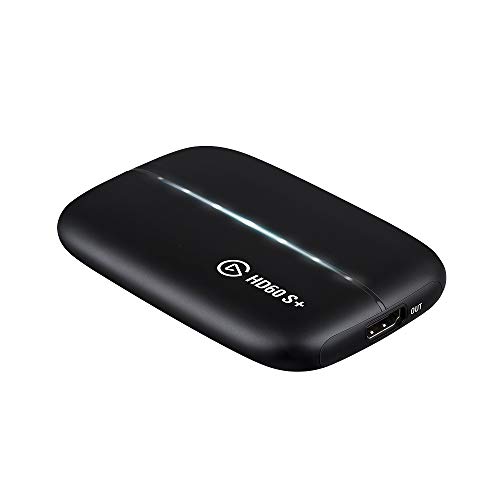 Elgato HD60 S+ Elgato HD60 S+ | Check price |
As an Amazon Associate we earn from qualifying purchases at no extra cost to you.
At a Glance: Capture Card Types
| Type / Example makers | Best for | Key points makers list | Limits |
|---|---|---|---|
| External 1080p60 USB (Elgato HD60 X, AVerMedia Live Gamer Mini, Razer Ripsaw HD) | Console streaming, second-PC setups, laptops | 1080p60 capture; Elgato lists HD60 X passthrough up to 4K60 with HDR and VRR; USB 3.0 connection | Capture is lower than passthrough on some models |
| External 4K60 USB (Elgato 4K X and 4K S, AVerMedia Live Gamer Ultra 2.1) | 4K capture and high-refresh passthrough | Elgato lists 4K X with 4K144 passthrough and 4K60 HDR10 capture over USB 3.x; others list 4K60 passthrough | Needs a fast USB port; costs more |
| Internal PCIe (Elgato 4K60 Pro MK.2, AVerMedia Live Gamer 4K and Extreme series) | Desktop PCs, low latency, always-on capture | PCIe bandwidth, 4K60 HDR on high-end models, low latency | Needs a desktop slot; cannot move between computers |
| Camera link / webcam style (Elgato Cam Link 4K) | Connecting a camera’s HDMI output for streaming | Plug-and-play UVC video, 4K30 or 1080p60 | Not designed for game console passthrough |
| Professional (Magewell, Blackmagic Design) | Studio, broadcast, multi-input needs | Wide format support, SDI and HDMI options on some | Premium tier; setup is more technical |
What to Look For
Capture resolution versus passthrough
Capture is what is recorded or streamed; passthrough is what goes to your monitor or TV. Many cards capture at 1080p60 but pass through up to 4K60, which suits console players who stream at 1080p. If you want to record 4K, check the capture resolution on the card’s spec list rather than only the passthrough number. Capture at 4K typically needs a 4K-ready card and a PC that can encode it.
Refresh rate, HDR and VRR
For a 120 Hz console mode or a high-refresh gaming PC output, look at the passthrough listing. Elgato lists the 4K X for passthrough up to 4K144, and the HD60 X for 4K60 passthrough with VRR. HDR support and variable refresh rate differ by model. If you want to capture HDR, check whether the card captures HDR10 or only passes it through, since many cards list HDR on passthrough but not capture.
USB or PCIe
External USB cards are easy to move between a PC and a laptop and need no opening of the case. Their performance depends on the USB port: most want USB 3.0 or faster, and cards at 4K want the correct USB 3.x or USB-C port. PCIe cards use a slot on a desktop motherboard and tend to provide stable bandwidth. If you stream from a single gaming PC, you may not need a capture card at all, since software such as OBS can capture the screen directly.
Latency and encoding
Latency matters for the gaming passthrough, which should be near zero on cards with hardware passthrough. The capture path adds delay to the stream and recordings. Some cards include onboard encoding, but most rely on your PC’s CPU, GPU or encoder. If your computer is weak, 4K capture can stutter. Check the card’s recommended PC specifications and your GPU’s encoder support.
Software and compatibility
Elgato’s cards pair with its Game Capture software and work with OBS Studio, Streamlabs and other apps. AVerMedia has its own RECentral software. UVC-based cards appear as ordinary video devices on Windows, macOS and sometimes Linux, but features like HDR tone mapping may depend on software. Confirm operating system support on the maker’s page, particularly for macOS and Apple silicon.
Console and HDCP
Some consoles use HDCP on certain outputs. PlayStation and Xbox typically let you disable HDCP in their settings for capture, though behavior varies by system update. Nintendo Switch output can be captured at 1080p. Follow the console’s settings guidance and respect copyright and platform terms when recording protected content.
Cables and ports
Use high-quality HDMI cables rated for your resolution and refresh rate. For 4K at high frame rates you need HDMI 2.1 capable cables. Short cables reduce signal problems. USB cables should be the high-speed ones supplied with the card.
Budget Tiers
- Budget: Generic USB HDMI capture dongles and entry cards such as Razer Ripsaw HD or lower AVerMedia models. They may be limited to 1080p30 or 1080p60 and have inconsistent software.
- Mid-range: Elgato HD60 X, AVerMedia Live Gamer Mini and similar 1080p60 cards with 4K passthrough. This is where most streamers start.
- Premium: Elgato 4K X and 4K S, AVerMedia Live Gamer 4K cards, Elgato 4K60 Pro MK.2 and professional units from Magewell or Blackmagic Design.
Pick X If… Decision Table
| Pick this | If you… |
|---|---|
| External 1080p60 card with 4K passthrough (Elgato HD60 X) | Stream console games at 1080p and play on a 4K TV |
| External 4K card (Elgato 4K X or 4K S) | Want 4K capture or high-refresh passthrough |
| Internal PCIe card | Have a desktop with a free slot and want a stable, low-latency setup |
| AVerMedia Live Gamer series | Prefer an alternative to Elgato, often with different port or software options |
| Cam Link style card | Connect a mirrorless camera or camcorder as a webcam |
| Magewell or Blackmagic unit | Need professional inputs or reliable studio use |
Setup Notes
- Plug the console into the card’s HDMI input and connect the card’s output to the TV.
- Connect the USB cable to the fastest port on the capture PC.
- Disable HDCP in console settings if capture shows a black screen, following the console maker’s guidance.
- Choose the capture resolution in your streaming software, not only in the console.
- Use a PC with a modern CPU or GPU encoder to avoid dropped frames.
Alternatives
- Direct capture in OBS on one PC: Works for PC games without a capture card.
- Console built-in streaming and capture: PlayStation and Xbox can stream directly with some limits on quality and overlays.
- Elgato Stream Deck or a dedicated streaming box: Streamlines setup, though it does not replace a capture card.
- Capture-capable docks or switchers: Some HDMI switchers add capture on their output, saving one device.
Common Mistakes to Avoid
The most common mistake is buying for the passthrough number and forgetting the capture number, or the reverse. A second is plugging a 4K card into a slow USB port and then blaming the card for dropped frames. Others include using an old HDMI cable that cannot carry high refresh rates, skipping the console HDCP setting, and expecting a weak laptop to encode 4K video smoothly. Reviewers also note that Mac and Linux users should read the maker’s support list first. If you only stream PC games from the same machine, you may not need a card at all. If you do buy one, write down your target resolution and frame rate for both streaming and recording before choosing, because recording at higher quality than you stream is a common reason to move up a tier.
Frequently Asked Questions
Do I need a capture card to stream from a console?
Not always, since consoles can stream directly. A capture card offers more control over overlays, quality and recording. It is also needed if you want to bring console footage into streaming software on a PC.
What is the difference between capture and passthrough?
Capture is what the card records or streams, while passthrough is what it sends to your display. A card may capture 1080p60 and pass through 4K60. Always read both numbers in the maker’s specification.
Is a 4K capture card worth it?
It is useful if you want to record in 4K or need high-refresh passthrough for a premium display. If you stream at 1080p, a cheaper card with 4K passthrough often covers the need. Your PC also has to handle 4K encoding.
USB or PCIe, which is better?
USB is simpler and portable, and PCIe offers stable bandwidth for desktops. Pick USB for laptops or multiple computers and PCIe for a dedicated streaming PC. Check available ports before buying.
Why is my capture screen black?
The most common reason is HDCP on the console output. Disable HDCP in the console settings where the platform allows it. Also check cable and input selections in your software.
Does a capture card work on Mac?
Many external cards are UVC-compatible and work on macOS, but features and software vary. Read the maker’s operating system support and confirm that your streaming software supports the device.