Our Short List of 3
All 5 Picks at a Glance
| Product | Specs | Action |
|---|---|---|
 Wacom Intuos Small Bluetooth | Check price on Amazon | |
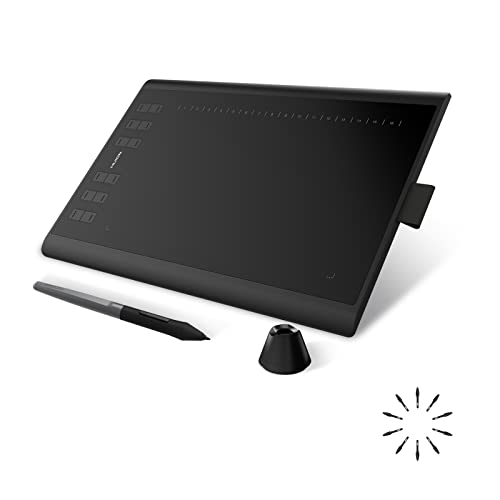 HUION Inspiroy H1060P | Check price on Amazon | |
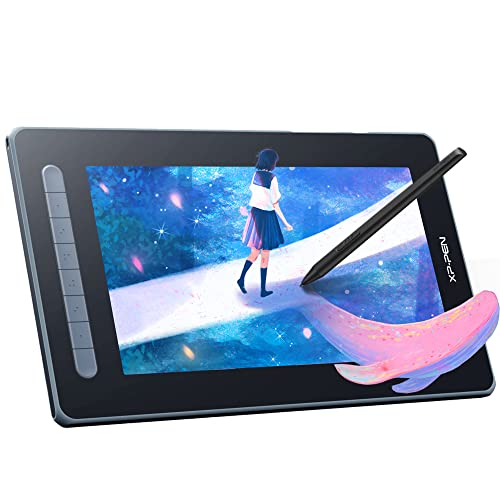 XPPen Artist 12 (2nd Gen) | Check price on Amazon | |
 Wacom One 13 | Check price on Amazon | |
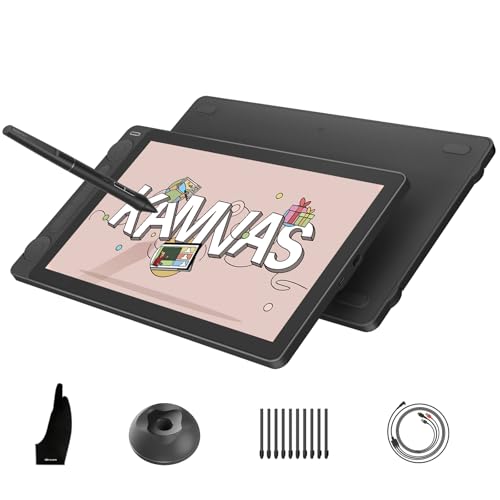 HUION Kamvas 13 (Gen 3) | Check price on Amazon |
Key takeaways
- Compare the best digital drawing tablets, from compact pen tablets to pen displays with screens, by active area, pen pressure, tilt, and connectivity.
A digital drawing tablet changes how drawing, painting, photo editing, and animation feel on a computer. Instead of pushing a mouse around a desk, the artist holds a pen, varies pressure to control line weight and opacity, and uses tilt for natural shading. The category splits into two clear families. Pen tablets are flat, screenless pads that map pen movement to the computer monitor, while pen displays put a screen under the pen so the line appears directly beneath the tip. Both families connect to a computer or a compatible phone or tablet, and neither type in this guide works as a standalone computer on its own.
This guide compares five digital drawing tablets that cover the main buying decisions in the category. The list includes two screenless pen tablets for compact desks, travel bags, and first-time buyers, and three pen displays for artists who want to draw directly on a picture. Each entry has a battery-free pen, pressure sensitivity, and driver support for common creative software such as Photoshop, Illustrator, Clip Studio Paint, and Krita. The sections below explain how to choose, then work through each model with its specifications and the kind of artist it suits best.
As an Amazon Associate, we earn from qualifying purchases.
How to Choose a Digital Drawing Tablet
The first decision is screen or no screen. A screenless pen tablet costs less desk space, travels easily, and keeps the eyes on the main monitor, which suits photo editing, vector work, note annotation, and long sessions at an existing workstation. A pen display adds a second screen and a more direct hand and eye relationship, which many illustrators, comic artists, and animators prefer for line art and coloring. Pen displays need more cables, more desk room, and a computer that can drive an extra display, so the choice should start with the desk and the computer, not with the pen alone.
Active area matters more than overall body size. On a pen tablet, the active area is the rectangle where the pen is tracked. A small area around six by four inches pairs well with a laptop screen and a small desk, while an area near ten by six inches gives longer strokes more room and maps more comfortably to a large monitor. On a pen display, screen size plays the same role. An display near twelve inches suits a laptop bag and a compact desk, while a thirteen inch display gives menus and palettes more room without taking over the workspace.
Pen specifications decide how natural drawing feels. Pressure levels describe how many steps of force the pen can report, and modern tablets in this guide range from several thousand levels to the highest tier now offered. Higher counts help with very light strokes and smooth ramps in brush size, although brush settings in the software matter just as much. Tilt support lets a tilted pen act like the side of a pencil or a flat brush, which is valuable for shading. A battery-free pen never needs charging and stays light, and replacement nibs in the box keep the surface feeling consistent as the first nib wears.
Shortcut controls shape daily speed. Express keys on the tablet can hold undo, brush size, zoom, and layer commands, and dials can scroll a canvas or change a brush without reaching for the keyboard. More keys help artists who build a fixed workflow around one program, while a small set is enough for beginners who still rely on the keyboard. Left-handed use is also worth checking, since several models allow the tablet to rotate so the keys sit on the right side instead.
Compatibility and connection deserve a final check before buying. Confirm that the tablet supports the exact operating system in use, whether that is Windows, macOS, Chrome OS, Linux, or Android, and download the current driver from the maker before the first session. Wired USB connections are simple and stable. Bluetooth adds freedom on a small desk but needs pairing and charging. Pen displays may use a single full-featured USB-C cable on compatible computers or a multi-cable connection with HDMI and USB, so the ports on the computer decide which cable setup applies.
Wacom Intuos Small Bluetooth
The Wacom Intuos Small Bluetooth is the compact starting point in this guide. It is a screenless pen tablet with a small footprint that fits beside a laptop in a classroom, a dorm room, or a carry bag, and it connects by Bluetooth or by USB cable. Four customizable ExpressKeys sit along the top edge for common shortcuts, and the battery-free Wacom Pen 4K never needs charging, so the tablet is ready whenever the computer is. Support for Windows, macOS, Chrome OS, and Android makes the Intuos Small a flexible pick for students who move between a school Chromebook and a home computer.
The small active area suits a laptop display and short, controlled strokes for sketching, handwriting, photo retouching, and marking up documents. Artists planning long sweeping lines on a large monitor may prefer one of the larger models below, but for learning pen control and for everyday editing work, the Intuos Small covers the essentials in a tidy, durable package from the longest-established name in the category.
Who It Suits
The Intuos Small Bluetooth suits beginners, students, teachers, and photo editors who want a small, wireless pen tablet from an established maker. It also suits travelers who need pen input in a bag without extra chargers or cables. Artists who want a large drawing area or a screen under the pen should look at the pen displays further down this guide.
HUION Inspiroy H1060P
The HUION Inspiroy H1060P is the large screenless option in this guide. Its active area measures ten by six and a quarter inches, giving the pen room for longer lines and a more natural mapping to a widescreen monitor. Twelve press keys run down the left side and sixteen soft keys line the top edge, so frequent commands such as undo, zoom, and brush size can stay on the tablet instead of the keyboard. The battery-free stylus reports a high level of pressure sensitivity and supports tilt, which helps with pencil-style shading and calligraphy brushes.
The H1060P connects by USB and works with Windows, macOS, Android, and Chromebook devices, and the tablet can rotate for left-handed use with the keys on the right. For artists who draw at a desktop monitor and want the largest working area in this guide without moving to a screen model, the Inspiroy H1060P is the straightforward choice.
Who It Suits
The Inspiroy H1060P suits desktop artists, illustrators, and photo editors who work on a large monitor and want a wide active area with many shortcut keys. It also suits left-handed artists who need a rotatable layout. Buyers who want to draw directly on a screen, or who need wireless freedom at a small desk, will find a better fit in the pen displays or the compact Wacom above.
XPPen Artist 12 (2nd Gen)
The XPPen Artist 12 (2nd Gen) is the smallest pen display in this guide, built around an 11.9 inch Full HD screen that is fully laminated, so the pen tip sits close to the line on screen and parallax stays low. Drawing directly on the picture makes inking, coloring, and animation cleanup feel more immediate than working on a separate pad, and the compact body still fits a laptop bag and a small desk. The battery-free X3 smart chip stylus reports high pressure sensitivity and tilt support, and eight shortcut keys along the side handle common commands.
Connection runs over USB-C, with support for Windows, macOS, Android, Linux, and Chrome OS, which makes the Artist 12 (2nd Gen) a flexible first pen display for students and hobby artists. Because it is a display, the computer must supply video over a compatible port or through the included multi-cable setup, so checking the laptop ports comes before ordering.
Who It Suits
The Artist 12 (2nd Gen) suits beginners and students who want their first pen display, portable illustrators who draw in more than one place, and animators who need the pen on the picture. Artists who want a larger canvas for detailed work at a fixed desk should consider the thirteen inch displays below instead.
Wacom One 13
The Wacom One 13 pairs a 13.3 inch Full HD screen with the Wacom One Pen, giving artists a larger direct drawing surface with the driver maturity and pen feel the Wacom name is known for. The display uses an anti-glare surface that keeps reflections down under room lighting, and the battery-free pen supports tilt, so pencil and brush tools respond to the angle of the hand as well as to pressure. Foldable legs on the back raise the display to a comfortable drawing angle on a desk.
The Wacom One 13 works with Windows, macOS, Chrome OS, and compatible Android devices, and it connects to the computer as an additional display, so the host machine does the computing while the Wacom One handles drawing and display duties. That makes it a strong fit for art students, hobby illustrators, teachers who annotate on screen, and anyone moving up from a small pad who wants more room for toolbars and reference windows beside the canvas. Buyers should confirm that the computer has the ports the connection requires before ordering.
Who It Suits
The Wacom One 13 suits students, teachers, and illustrators who want a roomier pen display from an established maker, with a simple pen and broad software support. It also suits annotators and presenters who mark up documents on screen. Artists who want the highest pressure range and dial controls in this guide should compare the HUION Kamvas 13 (Gen 3) below.
HUION Kamvas 13 (Gen 3)
The HUION Kamvas 13 (Gen 3) is the most control-focused pen display in this guide. Its 13.3 inch Full HD screen is fully laminated and finished with anti-glare canvas glass, which adds a light paper-like texture under the pen and keeps reflections down. HUION rates the panel at 99 percent of the sRGB color space, and each unit ships with a factory calibration report, which matters for artists who color work for screens. The PenTech 4.0 stylus is battery-free and reports the highest pressure range in this guide, with support for very light initial strokes.
Two dials and five shortcut keys sit along the side of the display. The dials handle zoom, canvas rotation, and brush size with a turn of the fingers, which keeps the drawing hand in place during long sessions. Connection is by USB-C to a Windows, macOS, or compatible Android host, and like every pen display here, the Kamvas 13 (Gen 3) is not a standalone tablet and must connect to a computer or phone to work. For illustrators and comic artists who want dials, a textured screen, and a current-generation pen in a portable thirteen inch body, this is the most complete package in the guide.
Who It Suits
The Kamvas 13 (Gen 3) suits illustrators, comic artists, and colorists who want a textured laminated screen, dial controls, and the highest pen pressure range in this guide, in a size that still travels. It also suits artists upgrading from an older pen display. Beginners who only need basic pen input for notes and photo edits can start with one of the screenless models above and spend less desk space.
FAQ
Do digital drawing tablets work without a computer?
The tablets in this guide need a host device. Pen tablets and pen displays connect to a computer, and some models also work with compatible Android phones or tablets. The tablet sends pen input to the host, and the drawing software runs on the host, so a standalone buying decision should look at tablet computers with built-in pen support instead of the models in this guide.
What is the difference between a pen tablet and a pen display?
A pen tablet is a flat pad with no picture of its own. The pen moves on the pad while the eyes follow the cursor on the computer monitor. A pen display adds a screen, so the artist draws directly on the image. Pen tablets take less desk space and travel more easily, while pen displays feel more direct for line art, inking, and coloring.
How much pen pressure sensitivity is enough for drawing?
Every model in this guide reports at least several thousand pressure levels, which is enough for controlled line weight, soft brush ramps, and pencil-style work in common drawing software. Brush settings, pen nib condition, and driver setup affect the feel as much as the headline number. Artists who rely on very light strokes and subtle shading may appreciate the higher ranges, while beginners will not be held back by the lower counts here.
Which drawing tablet size should a beginner choose?
A beginner with a laptop and a small desk can start with a compact pen tablet or a pen display near twelve inches, since both match a laptop screen well and store easily. A beginner with a large desktop monitor and room to draw from the shoulder should consider an active area near ten by six inches on a pen tablet, or a thirteen inch pen display, so long lines do not run out of space.
Final Verdict
The best digital drawing tablet depends on one main choice: drawing on a separate pad or drawing directly on a screen. For a compact, wireless start, the Wacom Intuos Small Bluetooth covers learning, classes, and photo editing in the smallest body here. For a large screenless workspace with many keys, the HUION Inspiroy H1060P is the pick. Among the pen displays, the XPPen Artist 12 (2nd Gen) is the portable first screen, the Wacom One 13 adds a larger display and a simple, established pen system, and the HUION Kamvas 13 (Gen 3) is the most complete option, with a textured laminated screen, dial controls, and the highest pen pressure range in the guide. Match the active area or screen size to the monitor and the desk, confirm the operating system and ports, and any of these five tablets will support serious drawing, editing, and animation work.
Product and ASIN Reference
| Product | ASIN |
|---|---|
| Wacom Intuos Small Bluetooth | B079J2FSQ7 |
| HUION Inspiroy H1060P | B01FTE9HS2 |
| XPPen Artist 12 (2nd Gen) | B09H738G1D |
| Wacom One 13 | B082LZXQ6B |
| HUION Kamvas 13 (Gen 3) | B0F13T9H31 |
More from Amazon
Programs that pair well with the guide above. Offers and eligibility are set by Amazon and may change.
Free shipping on eligible items, Prime Video and more. Eligible new members can start with a free trial.
Start a Prime free trialAd-free music streaming. Eligible new subscribers can start with a free trial.
Try Music Unlimited freeA Prime membership for ages 18-24 with a trial period. Eligibility is set by Amazon.
See Prime for Young AdultsAudiobooks and podcasts to listen to on the go. Eligible new members can start with a free trial.
Try Audible freeAs an Amazon Associate we earn from qualifying purchases.