Our Short List of 3
All 5 Picks at a Glance
| Product | Specs | Action |
|---|---|---|
 1. Logitech Brio 100 | Check price on Amazon | |
 2. Logitech C920s HD Pro | Check price on Amazon | |
 3. NexiGo N60 | Check price on Amazon | |
 4. Anker PowerConf C200 | Check price on Amazon | |
 5. Logitech C270 HD | Check price on Amazon |
Key takeaways
- Compare the best webcams for students by resolution, field of view, microphone, and privacy cover, for lectures, seminars, and group study calls.
A built-in laptop camera is often the weakest part of an otherwise capable study setup. The image can look soft in a dim dorm room, the microphone can pick up every keyboard click in a shared space, and the fixed angle can leave half of a whiteboard or a study partner outside the frame. For students who attend remote lectures, join seminar discussions, record short presentations, or meet tutors online, an external webcam solves those problems in a single, small upgrade that clips onto a screen and connects over USB.
This guide compares five webcams that suit student life in different ways, from a simple 720p model for basic calls to a sharper 2K camera for recorded coursework and interviews. Every model below is a plug-and-play USB webcam, so none of them needs a capture card or a complicated installation. The sections that follow explain how to choose, then cover each camera in turn with its listed specifications, its strengths and limits, and the kind of student it suits best.
As an Amazon Associate, we earn from qualifying purchases.
How to Choose a Webcam for Studying
Resolution is the first decision, and it is simpler than marketing suggests. A 1080p camera captures noticeably more detail than a 720p camera, which matters when an instructor asks students to hold up written work, share a sketch, or present from a small room where facial expression carries part of the discussion. A 720p camera still handles ordinary lecture attendance and one-to-one calls well, especially on a smaller laptop screen. A 2K camera adds further sharpness that helps with recorded presentations, portfolio reviews, and internship interviews, although many calling platforms compress incoming video, so the full resolution is not always visible to the other side of a live call.
Field of view describes how much of the room the camera shows. A narrow view, around 55 to 58 degrees, frames one person at a desk and keeps a messy dorm background mostly out of shot. A mid-range view near 78 degrees adds headroom for movement and gestures. A wide view of 95 degrees or more can fit two students side by side for group project calls, but it also shows more of the room, so it rewards a tidy background. Adjustable field of view, offered on one model below, lets a single camera cover both situations.
Focus and light handling shape how forgiving a camera feels day to day. Autofocus keeps the image sharp when a student leans in to read or steps back to demonstrate something, while fixed-focus models work best at a steady desk distance. Automatic light correction helps in rooms with a single lamp or a window to one side, which describes most student housing. No webcam fully fixes a dark room, so facing a window or a desk lamp during important calls remains worthwhile with any model here.
Audio deserves equal attention. A single built-in microphone is adequate for quiet rooms, while stereo or noise-canceling microphones help in shared flats, libraries with background murmur, and family homes. Students who regularly present or record should still consider a separate headset later, but a good built-in microphone keeps the starting setup simple. Finally, look for a privacy shutter or cover, a flexible mounting clip that fits both laptop lids and external monitors, and compatibility with the platforms a course actually uses, such as Zoom, Microsoft Teams, and Google Meet.
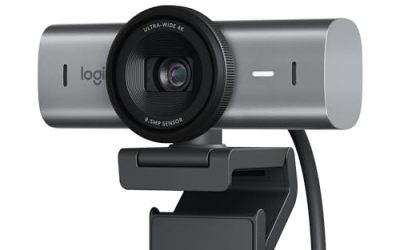
1. Logitech Brio 100
The Logitech Brio 100 is a straightforward Full HD starting point for students whose laptop camera is the main problem. It records at 1080p and 30 frames per second, a clear step up from the 720p cameras built into many older laptops, and its RightLight auto-light balance brightens the image automatically when a room is unevenly lit. The 58-degree field of view frames one student at a desk without pulling in the whole room, which suits dorm rooms and bedrooms where privacy matters.
A built-in microphone handles everyday class participation, and an integrated privacy shutter slides closed when the camera is not in use, so there is no need for tape or a separate cap. The attached cable and fixed mount clip keep setup simple: clip it on, plug it in, and select it inside the calling app. Logitech lists compatibility with Microsoft Teams, Zoom, and Google Meet, covering the platforms most courses rely on.
The trade-offs match its role as an entry model. Focus is fixed, so it performs best at a normal seated distance rather than for close-up demonstrations, and the single microphone is better suited to quiet rooms than to noisy shared spaces. For a student who mainly attends lectures, joins discussions, and wants a cleaner image than a built-in camera provides, those limits are reasonable.
Who It Suits
The Brio 100 suits students who want a simple, tidy upgrade for lectures and seminars, especially in small rooms where a narrow frame and a privacy shutter are practical advantages.
2. Logitech C920s HD Pro
The Logitech C920s HD Pro is the long-established step-up option in this group, aimed at students who present often or record coursework. It captures Full HD 1080p video at 30 frames per second through a glass lens, with autofocus that adjusts as the user moves, leans toward notes, or holds work up to the camera. Its 78-degree field of view is wider than the Brio 100, giving a more natural frame for presentations and for showing a desk area during a demonstration.
Audio is a clear strength. Dual stereo microphones capture sound from both sides, which helps a voice sound fuller in recorded presentations and clearer during question-and-answer sessions. HD light correction adjusts exposure automatically, and the included privacy shutter covers the lens between calls. The camera works with Skype, Zoom, FaceTime, and Hangouts, and its mount fits laptops, monitors, and tripods, which is useful for students filming project work from a desk or a bench.
The C920s is larger than the smallest models here, so it is slightly less discreet on a thin laptop lid, and its feature set is more than a student who only attends lectures will use. For coursework that involves presenting, recording, or interviewing, the autofocus and stereo audio justify choosing it over a basic model.
Who It Suits
The C920s suits students who present, record assignments, or attend interviews regularly and want autofocus and stereo microphones in a single, widely compatible camera.
3. NexiGo N60
The NexiGo N60 stands out for its very wide 110-degree field of view, the widest in this guide. That angle can fit two students side by side for a group project call, show a whiteboard or instrument during a lesson, or cover a shared desk during a study session. NexiGo also provides software control that lets the user adjust the field of view and zoom, so the frame can be tightened for an ordinary one-person lecture and widened again when the group gathers.
Video is Full HD 1080p, and the built-in microphone covers everyday participation and group discussion. A privacy cover is included, addressing the obvious concern of a wide-angle camera in a shared room: when the cover is closed, the camera sees nothing. Setup is plug and play over USB, and the listing names Zoom, Skype, and Teams among its supported uses, along with conferencing and video calling generally.
The wide lens is both the appeal and the caution. At full width it shows a great deal of the room and can make a single speaker look small in the frame, so solo students should expect to use the software adjustment or sit closer. Students who always call alone from a narrow desk may prefer a tighter camera, while group workers will value exactly what this one does best.
Who It Suits
The N60 suits students who join group project calls, music or lab lessons, or shared study sessions where fitting more than one person, or more of the workspace, into the frame matters.
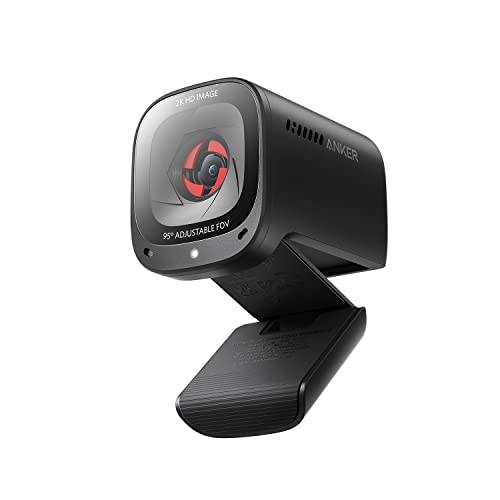
4. Anker PowerConf C200
The Anker PowerConf C200 is the sharpest camera in this guide, recording at 2K resolution. That extra detail helps most in recorded work: a filmed presentation, a portfolio walkthrough, or a remote interview where the recording, rather than a compressed live feed, is what gets judged. Its field of view is adjustable, with settings that include narrower and wider options up to 95 degrees, so one camera can frame a single speaker tightly or open up for two people at a desk.
Audio receives unusual attention for a webcam. The C200 uses dual stereo microphones with AI noise canceling, designed to focus on the speaker’s voice and reduce surrounding noise, which is valuable in shared housing and busy homes. Low-light correction helps in evening study sessions, and a built-in privacy cover closes over the lens when the camera is idle. Anker lists the camera for PC, laptop, and Mac, and the AnkerWork software provides image adjustments on supported systems.
The C200 asks a little more involvement than the simplest models, since its adjustable settings reward a few minutes spent choosing a field of view and checking the picture before an important call. Students who only attend lectures may not use its resolution advantage often. For recorded coursework and interviews, it is the strongest fit here.
Who It Suits
The C200 suits students who record presentations, build portfolios, or attend remote interviews, and who study in shared or noisy spaces where noise-canceling microphones help.
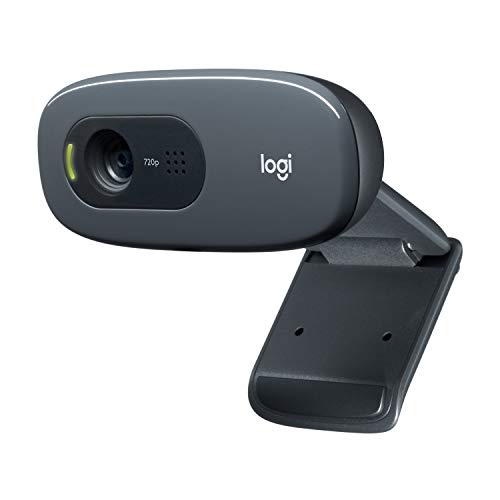
5. Logitech C270 HD
The Logitech C270 HD is the basic, low-cost route into an external webcam, and it remains relevant for one clear reason: many student tasks do not need more than 720p. Attending a lecture, answering a question in a seminar, or checking in with a tutor on a laptop screen does not require fine detail, and the C270 covers those calls with widescreen HD 720p video at 30 frames per second and a 55-degree field of view that frames one person at a desk.
Its built-in noise-reducing microphone is designed to keep a voice clear up to about 1.5 meters away, which matches a normal seated position. RightLight 2 light correction adjusts the picture in uneven light, and the universal clip fits laptops, LCD screens, and monitors. Logitech lists compatibility with Windows, macOS, and Chrome OS, plus platforms including Skype and Zoom, which makes the C270 an easy match for a Chromebook-based school setup as well as a Windows or Mac laptop.
The limits are plain. Resolution tops out at 720p, focus is fixed, and there is no privacy shutter, so students who want one should add a separate cover. Recorded work will look softer than the 1080p and 2K models above. As a first webcam for attendance and everyday calls, or as a spare for a desktop that has no camera at all, it still makes sense.
Who It Suits
The C270 suits students who mainly attend classes online, use a Chromebook or older laptop, or need a simple camera for a desktop that currently has none.
Frequently Asked Questions
Is 1080p worth it for online classes, or is 720p enough?
For attending lectures and joining discussions on a laptop screen, 720p is generally enough, and it also uses less bandwidth on a weak connection. Choose 1080p when presenting, sharing written or visual work, or recording, because the extra detail keeps text, diagrams, and facial expression clearer. A 2K model helps recorded work further, although live platforms may compress the feed.
Will these webcams work with Zoom, Teams, and Google Meet?
Yes. All five models are plug-and-play USB webcams, and their listings name major platforms including Zoom, Microsoft Teams, Google Meet, Skype, and FaceTime among supported uses. After connecting the camera, select it as the video and microphone source in the app’s settings, since many laptops keep the built-in camera as the default until it is changed.
How can a student improve picture quality without buying a better camera?
Face a window or a desk lamp so light falls on the face rather than behind it, raise the camera to eye level, and clean the lens. Sit closer to the router or use a wired connection where possible, because a stable connection often improves a live feed more than a resolution increase. Closing other heavy downloads during an important call also helps.
Do students need a privacy shutter on a webcam?
A shutter is not required, but it is a simple safeguard in shared rooms and dorms, giving a physical guarantee that the camera cannot see anything between calls. Three of the models above include a shutter or cover, and the Anker C200 has one built in. For a camera without one, unplugging it or adding a separate lens cover achieves the same result.
Final Verdict
Most students should start with the Logitech Brio 100 for its clean 1080p image, narrow dorm-friendly frame, and built-in privacy shutter, or step up to the Logitech C920s HD Pro when presenting and recording make autofocus and stereo audio worthwhile. Choose the NexiGo N60 for group work that needs its wide 110-degree view, the Anker PowerConf C200 for the sharpest recorded image and noise-canceling microphones, and the Logitech C270 HD when the goal is simply to attend class reliably on a tight budget. Any of the five is a clear improvement over a weak built-in camera, so the best choice is the one that matches how a course is actually attended: watching, discussing, presenting, or recording.
Product and ASIN Reference
| Product | ASIN |
|---|---|
| Logitech Brio 100 | B0CDGHRV61 |
| Logitech C920s HD Pro | B07K986YLL |
| NexiGo N60 | B088TSR6YJ |
| Anker PowerConf C200 | B09MFMTMPD |
| Logitech C270 HD | B004FHO5Y6 |
More from Amazon
Programs that pair well with the guide above. Offers and eligibility are set by Amazon and may change.
Free shipping on eligible items, Prime Video and more. Eligible new members can start with a free trial.
Start a Prime free trialAd-free music streaming. Eligible new subscribers can start with a free trial.
Try Music Unlimited freeA Prime membership for ages 18-24 with a trial period. Eligibility is set by Amazon.
See Prime for Young AdultsAudiobooks and podcasts to listen to on the go. Eligible new members can start with a free trial.
Try Audible freeAs an Amazon Associate we earn from qualifying purchases.