Our Short List of 3

- Screen: 27-inch IPS panel, 2560 x 1440 resolution
- Color gamut: near-total Adobe RGB coverage, near-total DCI-P3 coverage, full sRGB coverage
- Calibration: hardware calibration with 16-bit 3D LUT, Delta E of 1.5 or lower
- Panel coating: nano matte with anti-reflection certification

- Screen: 27-inch IPS panel, 3840 x 2160 resolution
- Color gamut: near-total DCI-P3 coverage, near-total Adobe RGB coverage, full sRGB coverage
- Calibration: factory calibrated, Calman Verified, Delta E under 2
- HDR: VESA DisplayHDR 400 certified

- Screen: 27-inch IPS Black panel, 3840 x 2160 resolution
- Contrast: 2000:1 static contrast ratio
- Color gamut: full sRGB coverage, full Rec.709 coverage, near-total DCI-P3 coverage
- Calibration: factory calibration report included, Delta E under 2
All 5 Picks at a Glance
| Product | Specs | Action |
|---|---|---|
| BenQ SW272Q PhotoVue Photographer Monitor |
| Check price on Amazon |
| ASUS ProArt Display PA279CRV |
| Check price on Amazon |
| Dell UltraSharp U2723QE |
| Check price on Amazon |
 BenQ PD2705U DesignVue Designer Monitor |
| Check price on Amazon |
 ASUS ProArt Display PA248QV |
| Check price on Amazon |
Key takeaways
- The best monitors for Photoshop pair wide color gamuts with factory calibration and sharp IPS panels, so edits look the same on screen and in print.
Photoshop work lives or dies on color. A portrait retouched on a screen that cannot show the full sRGB range, or that drifts away from its factory settings, will look different the moment it is printed, uploaded, or opened on another display. The best monitors for Photoshop solve that problem with wide color gamuts, honest factory calibration, and panels that hold their accuracy from the center of the screen to the corners. They also give you the working room a layered file demands, because palettes, toolbars, and a second reference image all compete for space beside the canvas.
This guide is fenced to one job: editing still images in Photoshop. Every pick below is a desktop monitor with an IPS panel, a factory calibration story, and coverage of at least the full sRGB space, and the five are arranged from a professional photographer-grade display down to a budget panel that still treats color seriously. Refresh rates and gaming features were ignored on purpose. What matters here is gamut coverage, calibration depth, uniformity, resolution, and the ports a photo desk actually uses.
As an Amazon Associate, we earn from qualifying purchases.
BenQ SW272Q PhotoVue Photographer Monitor
- Screen: 27-inch IPS panel, 2560 x 1440 resolution
- Color gamut: near-total Adobe RGB coverage, near-total DCI-P3 coverage, full sRGB coverage
- Calibration: hardware calibration with 16-bit 3D LUT, Delta E of 1.5 or lower
- Panel coating: nano matte with anti-reflection certification
The SW272Q is the pick for photographers who proof against print and need the screen to be the most trustworthy surface in the room. Its 27-inch IPS panel runs at QHD resolution and covers nearly all of the Adobe RGB space, which is the gamut that matters when a file is headed for a quality printer rather than a phone screen. BenQ builds this line specifically for photo work, and the hardware calibration support is the headline: the panel stores its corrections in a 16-bit 3D look-up table inside the monitor itself, so the calibration survives a change of computer or cable.
A nano matte coating with anti-reflection certification keeps glare from washing out shadow detail under studio lighting, and the included shading hood does the same job more aggressively for critical sessions. The wireless Hotkey Puck G2 switches between color modes without menu diving, and an SD card slot on the side moves files from camera to screen without a separate reader. For a Photoshop desk that also produces printed output, this is the most complete package in the guide.
ASUS ProArt Display PA279CRV
- Screen: 27-inch IPS panel, 3840 x 2160 resolution
- Color gamut: near-total DCI-P3 coverage, near-total Adobe RGB coverage, full sRGB coverage
- Calibration: factory calibrated, Calman Verified, Delta E under 2
- HDR: VESA DisplayHDR 400 certified
The PA279CRV is the 4K all-rounder of this guide, and the strongest single choice for a Photoshop user who wants one monitor that handles everything. The 27-inch IPS panel pairs a 3840 x 2160 resolution with near-total coverage of both the DCI-P3 and Adobe RGB gamuts, so the same screen can proof a print file in the morning and check a web export in the afternoon without either job feeling compromised. Every unit is factory calibrated and Calman Verified, with a color accuracy rating of Delta E under 2 out of the box.
The pixel density at this size and resolution is high enough that Photoshop interface text stays crisp at standard scaling, and brush work at full magnification shows clean edges. A single USB-C cable carries the picture and delivers up to 96W of power, which is enough to run and charge most laptops, and a DisplayPort output supports daisy-chaining a second monitor for a palettes-and-reference layout. The stand adjusts for height, tilt, swivel, and pivot, so the panel can rotate to portrait for a tall image. For most Photoshop users, this is the monitor to measure the rest against.
Dell UltraSharp U2723QE
- Screen: 27-inch IPS Black panel, 3840 x 2160 resolution
- Contrast: 2000:1 static contrast ratio
- Color gamut: full sRGB coverage, full Rec.709 coverage, near-total DCI-P3 coverage
- Calibration: factory calibration report included, Delta E under 2
The U2723QE earns its place on two strengths: contrast and connectivity. Its IPS Black panel doubles the contrast ratio of a conventional IPS display, which gives shadow detail in a photograph more separation and makes dark interface themes easier on the eyes during long retouching sessions. Color coverage runs to the full sRGB and Rec.709 spaces with near-total DCI-P3 coverage, and Dell ships each unit with a factory calibration report and a Delta E rating under 2.
Where this monitor pulls ahead of the field is the hub built into the back. One USB-C cable delivers the image plus up to 90W of charging, and around it sit DisplayPort input and output, HDMI, wired Ethernet, and four USB-A ports, with a KVM switch that lets one keyboard and mouse serve two computers. A photographer who ingests cards on a desktop and edits on a laptop can leave both machines wired and swap between them in seconds. Brightness reaches 400 nits with DisplayHDR 400 support, the highest sustained brightness figure in this guide, which helps in a bright room where matte panels can look flat.
BenQ PD2705U DesignVue Designer Monitor
- Screen: 27-inch IPS panel, 3840 x 2160 resolution
- Color gamut: near-total sRGB coverage, near-total Rec.709 coverage
- Calibration: factory calibrated with individual report, Delta E of 3 or lower, AQCOLOR technology
- HDR: HDR10 support
The PD2705U is BenQ’s designer-line counterpart to the photographer-focused SW272Q, tuned for the sRGB and Rec.709 spaces where most Photoshop deliverables actually live. Its 27-inch 4K IPS panel covers nearly all of both gamuts and arrives factory calibrated with an individual calibration report in the box, at a Delta E of 3 or lower. A set of dedicated display modes, including a darkroom mode and a CAD/CAM mode, maps the panel to different working conditions at the press of a button.
The Hotkey Puck G2 controller sits on the desk and switches those modes, plus brightness and input, without opening the on-screen menu and covering the image you are judging. USB-C carries video and up to 65W of charging, a DisplayPort output daisy-chains a second screen, and the built-in KVM shares one keyboard and mouse between two machines. Brightness is the honest trade-off here: at 250 nits typical it is the dimmest panel in this guide, so it suits a controlled-lighting desk better than a sunlit studio. For an sRGB-first workflow, though, its accuracy tools per tier are hard to beat.
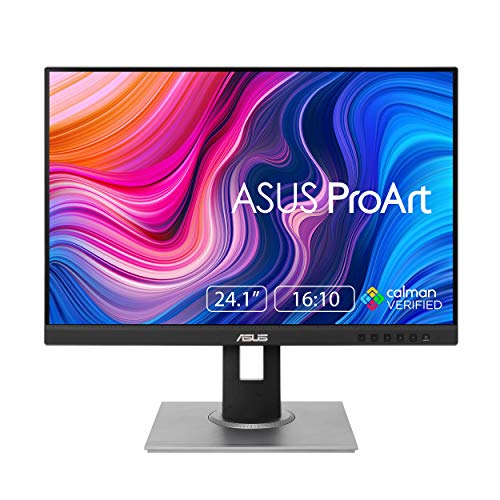
ASUS ProArt Display PA248QV
- Screen: 24.1-inch IPS panel, 1920 x 1200 resolution, 16:10 aspect ratio
- Color gamut: full sRGB coverage, full Rec.709 coverage
- Calibration: factory calibrated, Calman Verified, Delta E under 2
- Refresh rate: 75 Hz
The PA248QV proves that a Photoshop monitor does not need a 4K panel or a premium tier to get color right. This 24.1-inch IPS display uses a 1920 x 1200 resolution in a 16:10 aspect ratio, and that taller shape is quietly useful: Photoshop toolbars and panels stack along the side while the extra vertical rows give the canvas more breathing room than a standard widescreen panel of the same width. Color coverage spans the full sRGB and Rec.709 spaces, and each unit is factory calibrated and Calman Verified to a Delta E under 2, the same accuracy rating as the larger ProArt above.
Connectivity leans on the dependable standards, with DisplayPort, HDMI, and a legacy VGA input, plus a USB hub for a card reader or backup drive. There is no USB-C docking here, and the resolution will feel tight next to the 4K panels if you work on very large files, but the fundamentals are all correct: an accurate IPS panel, real calibration, an anti-glare surface, and a stand that adjusts in every direction including pivot to portrait. As a first dedicated editing monitor, or a second screen beside a laptop, it is the sensible budget entry point into this category.
How to Choose
Start with the color space your work actually ends in. If nearly everything you produce is published on screens, full and accurate sRGB coverage is the requirement, and every monitor in this guide clears it. If you print your own work or deliver files to a print shop, Adobe RGB coverage becomes the deciding factor, because a screen that cannot show those greens and cyans forces you to guess at them. DCI-P3 coverage matters most for photographers who also cut video or grade stills pulled from video projects.
Resolution is a workspace decision, not a quality contest. A 27-inch 4K panel shows a full-resolution image at a useful size while leaving room for panels and palettes, and it keeps interface text sharp. QHD at the same size trades some of that room for a lower load on the graphics hardware. A smaller 1920 x 1200 panel is a legitimate choice for a second screen or a compact desk, as long as the calibration is real.
Factory calibration is the floor, hardware calibration is the ceiling. A factory-calibrated monitor with a printed report and a low Delta E figure is accurate the day it arrives and is enough for most Photoshop work. Hardware calibration, where corrections are stored inside the monitor, keeps that accuracy stable over years and across different computers, and it is worth the premium tier if color is how you earn money. Either way, plan to recalibrate periodically with a colorimeter as the panel ages, and work in consistent lighting, because no specification survives a bright window behind the screen.
Match the ports to your desk. A laptop-based setup benefits most from a single USB-C cable that carries video, data, and charging. A two-computer desk should look for a KVM switch and a DisplayPort output for daisy-chaining. Card readers, Ethernet, and USB hubs built into the monitor remove a separate dock from the desk entirely.
Do not pay for the wrong strengths. High refresh rates, curved panels, and gaming response figures add cost that does nothing for still-image editing. Spend instead on gamut coverage, calibration, panel uniformity, and a stand that puts the screen at the right height for a long session.
Frequently Asked Questions
Is a 4K monitor necessary for Photoshop work?
No, but it is genuinely useful. Photoshop itself runs well at any resolution, yet a 4K panel at 27 inches shows more of a high-resolution photograph at once, keeps fine detail visible while you retouch, and leaves room for tool panels beside the canvas. A well-calibrated QHD or 1920 x 1200 monitor still produces accurate work, because color accuracy depends on the panel and its calibration, not on the pixel count. Choose 4K for workspace and sharpness, and choose calibration for correctness.
Which color space matters most for photo editing?
For images published online or viewed on phones and laptops, sRGB is the working standard, and full, accurate sRGB coverage is the minimum to look for. For print work, Adobe RGB is the important upgrade, since it reaches greens and cyans that sRGB cannot show and that good printers can reproduce. DCI-P3 sits between the two and matters most if your stills work overlaps with video. The safest approach is to edit in the space your final output uses and let the monitor cover that space completely.
Do I need hardware calibration in a Photoshop monitor?
Only if your income depends on exact color. Hardware calibration stores correction data inside the monitor, so the panel stays accurate across computers and over a longer working life, and it pairs with a colorimeter for periodic re-profiling. Factory calibration with a low Delta E rating and an individual report, which most picks in this guide include, is accurate enough for enthusiast and most professional screen-based work. What every Photoshop user should avoid is an uncalibrated panel with no accuracy figures published at all.
Can one monitor handle both photo editing and everyday tasks?
Yes, and most people should buy exactly that. Every monitor in this guide is also a strong general-purpose display, with sharp text, comfortable matte surfaces, and stands suited to long hours. The editing-focused features, such as wide gamuts and calibration modes, do not get in the way of documents, browsing, or video calls. The only caution is color management: a wide-gamut panel can make unmanaged content look oversaturated in apps that ignore color profiles, while Photoshop itself handles profiles correctly.
Final Verdict
For a Photoshop-first desk, the BenQ SW272Q is the most complete monitor here, combining near-total Adobe RGB coverage, hardware calibration, and print-proofing tools in one package. The ASUS ProArt PA279CRV is the best all-round choice, pairing 4K resolution with wide gamuts in both creative spaces and strong one-cable connectivity. The Dell UltraSharp U2723QE suits a two-computer desk that needs a hub as much as a display, the BenQ PD2705U serves sRGB and Rec.709 workflows with the handiest controls in the group, and the ASUS ProArt PA248QV is the budget entry that still gets the color fundamentals right. Pick by the space your work ends in, and any of the five will show you the truth about your files.
Product and ASIN Reference
| Product | ASIN |
|---|---|
| BenQ SW272Q PhotoVue Photographer Monitor | B0BZT3SLWV |
| ASUS ProArt Display PA279CRV | B0BQPSX5CR |
| Dell UltraSharp U2723QE | B09TQZP9CL |
| BenQ PD2705U DesignVue Designer Monitor | B096B3PBFZ |
| ASUS ProArt Display PA248QV | B088BC5HKF |
More from Amazon
Programs that pair well with the guide above. Offers and eligibility are set by Amazon and may change.
Free shipping on eligible items, Prime Video and more. Eligible new members can start with a free trial.
Start a Prime free trialAd-free music streaming. Eligible new subscribers can start with a free trial.
Try Music Unlimited freeA Prime membership for ages 18-24 with a trial period. Eligibility is set by Amazon.
See Prime for Young AdultsAudiobooks and podcasts to listen to on the go. Eligible new members can start with a free trial.
Try Audible freeAs an Amazon Associate we earn from qualifying purchases.