Our Short List of 3
All 5 Picks at a Glance
| Product | Specs | Action |
|---|---|---|
 Logitech MX Brio | Check price on Amazon | |
 Insta360 Link 2 | Check price on Amazon | |
 Logitech Brio 500 | Check price on Amazon | |
 Anker PowerConf C200 | Check price on Amazon | |
 Logitech C920s Pro HD | Check price on Amazon |
Our Top Picks
A home office runs on video calls, and the camera built into most laptops is usually the weakest part of the setup. It sits too low, struggles when a window is behind you, and turns a bright professional conversation into a dim, grainy picture where your face is hard to read. A dedicated webcam fixes the angle, the sharpness, and the light handling in one small step, and it does so without changing anything else about how you work.
The good news is that home office webcams now cover a wide range of needs. Some record in 4K for presentations and recorded updates, some use a motorized gimbal to follow you when you stand and move, and some simply deliver clean 1080p video with a privacy cover and dependable autofocus. The five models below are all webcams suited to desk based work, and they differ mainly in resolution, framing help, microphone design, and how much control their software gives you over the picture.
As an Amazon Associate, we earn from qualifying purchases.
How to Choose a Webcam for a Home Office
Start with resolution, but keep it in perspective. Most meeting platforms compress video, so a sharp 1080p camera with good light handling often looks better on a call than a poorly lit 4K camera. Choose 4K if you record video, present to large groups, or want extra detail when you crop the frame. Choose 2K or 1080p if your day is mostly standard meetings and you want a simpler, lighter setup.
Next, look at field of view. A narrower view around 65 degrees frames your head and shoulders and keeps a busy room out of the picture. A view near 78 degrees is a balanced default for a single person at a desk. A wider view near 90 degrees or more suits a desk you share, a whiteboard behind you, or a room you actually want to show. Adjustable fields of view are especially useful at home, where the office may also be a bedroom or a corner of a living room.
Light handling matters more than many buyers expect. Home offices rarely have studio lighting, so look for automatic light correction, good low light performance, and a larger sensor if you take early or evening calls. Autofocus is equally practical, since it keeps you sharp when you lean in, reach for notes, or hold something up to the camera.
Consider microphones and privacy together. Dual microphones with noise reduction help when a household is active in the next room, although a separate headset still gives the most controlled sound. For privacy, a physical shutter or cover is the clearest safeguard, because it blocks the lens in a way you can see at a glance. Finally, check the connection and mount. USB-C suits newer laptops, USB-A suits older machines and docks, and a standard monitor clip plus a tripod thread gives you the most placement options.
Logitech MX Brio
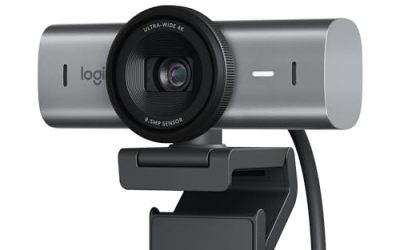
The MX Brio is the premium fixed camera in this group, built for a desk where video quality is part of the job. It records in 4K at 30 frames per second or 1080p at 60 frames per second, using an 8.5 megapixel sensor that is larger than the sensors in most consumer webcams. That larger sensor is the main reason to consider it for a home office with mixed light, since it supports cleaner detail when a room is not evenly lit.
Framing is adjustable rather than motorized. You can choose a 90, 78, or 65 degree diagonal field of view, which lets the same camera cover a wider desk view or a tighter head and shoulders shot. Show Mode lets you tilt the camera down to share notes or a sketch on the desk, a useful touch for design reviews and tutoring. Logitech software adds fine controls for exposure, white balance, and related image settings for users who want to set the picture once and keep it consistent.
Who It Suits
The MX Brio suits home office workers who present often, record video updates, or meet with clients and want the strongest fixed camera picture in this list. It also suits a permanent desk, where its settings can be tuned once and left alone. If you rarely record and your calls are all standard meetings, its extra resolution may be more than you need.
Insta360 Link 2
The Link 2 takes a different approach: instead of a fixed lens, it uses a two-axis gimbal that physically turns to follow you. That matters in a home office where you stand to present, move to a whiteboard, or demonstrate something on your desk. Its AI tracking keeps a single person framed as they move, and gesture control lets you start or adjust tracking without returning to the keyboard.
Video reaches 4K at 30 frames per second and 1080p at 60 frames per second from a half-inch sensor, with HDR support for rooms where a bright window sits beside a darker interior. The built-in microphone uses AI noise canceling, which is aimed at the everyday sounds of a house, such as a door closing or a fan in the background. Dedicated modes cover desk work and whiteboard presentations, so the camera can square up a board rather than leaving it at an angle.
Who It Suits
The Link 2 suits presenters, teachers, trainers, and anyone whose home office work involves standing, moving, or showing physical material. It also suits a room used for both seated calls and recorded presentations. If you sit still for every call, a fixed camera is simpler, and the gimbal adds moving parts you may never use.
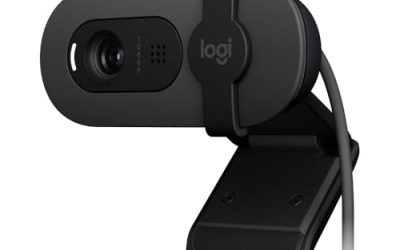
Logitech Brio 500
The Brio 500 is designed squarely around ordinary meetings, and its feature set reflects that focus. It records in Full HD 1080p at 30 frames per second, or 720p at 60 frames per second, from a 4 megapixel sensor. RightLight 4 light correction adjusts the image automatically, and RightSight auto framing keeps you centered when you shift in your chair or lean toward the screen.
Its field of view can be set to 90, 78, or 65 degrees, so it can show more of a room or tighten down to a conventional meeting shot. Show Mode again appears here, letting you tilt the camera toward the desk to share paper notes. Dual microphones include noise reduction, and a built-in privacy shutter closes over the lens when the workday ends. The connection is USB-C, and the listing covered here is the graphite finish.
Who It Suits
The Brio 500 suits hybrid and remote workers whose day is a steady run of Teams, Meet, or Zoom calls and who want automatic framing and light correction without managing detailed settings. It is a strong fit for a tidy desk and a single user. Anyone who records a lot of video or needs 4K detail should look at the MX Brio or the Link 2 instead.
Anker PowerConf C200
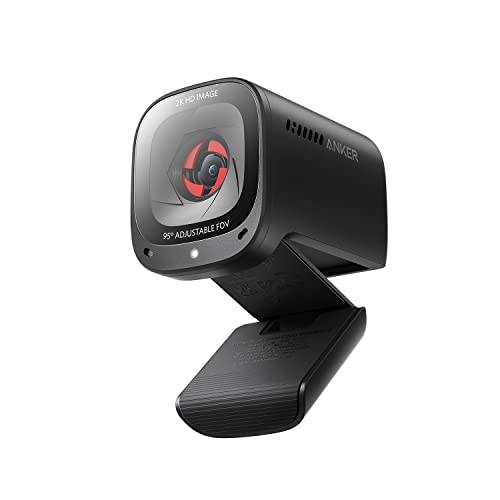
The PowerConf C200 is the compact value option in this group, and it still steps up to 2K resolution. It records at 2560 by 1440 at 30 frames per second on a 5 megapixel sensor, with 1080p and 720p modes below that. That puts more detail into the picture than a basic 1080p camera while keeping the body small enough to sit on a laptop lid without feeling bulky.
Its field of view adjusts between 95, 78, and 65 degrees through the AnkerWork software, so you can decide how much of the room appears behind you. Autofocus covers normal desk distances, low light correction helps in dimmer rooms, and dual stereo microphones include noise canceling aimed at household background sound. A built-in privacy cover closes over the lens, and the camera connects over USB with the included USB-C to USB-A cable.
Who It Suits
The C200 suits home office workers who want a clear step up from a laptop camera without moving to a premium 4K model. It fits a laptop based setup, a small desk, and a household where a physical privacy cover matters. If you want the smoothest motion at higher frame rates or a motorized tracking camera, the models above it in this list offer more.
Logitech C920s Pro HD
The C920s Pro HD is the long-running simple choice: Full HD 1080p video at 30 frames per second, a glass lens, and very broad compatibility. Its 78 degree field of view is a sensible default for one person at a desk, wide enough to feel natural and narrow enough to keep most of a room out of frame.
Autofocus and HD light correction handle the basics automatically, and dual stereo microphones sit on either side of the lens for natural sounding speech. The defining extra compared with older versions of this design is the privacy shutter, which attaches over the lens when the camera is not in use. It connects over USB-A, which makes it an easy match for older laptops, desktops, and docking stations that still rely on that port.
Who It Suits
The C920s suits anyone who wants a dependable 1080p webcam with minimal setup, especially on an older computer with USB-A ports. It also suits a second desk or a shared family computer, where simplicity matters more than advanced software. Buyers who want 2K or 4K detail, USB-C, or automatic framing should choose one of the newer models above.
Frequently Asked Questions
Is 1080p enough for home office video calls?
For most home office calls, yes. Meeting platforms commonly transmit video at or below 1080p, so a well lit 1080p webcam with autofocus usually produces a clear, professional picture. Higher resolutions help most when you record video, join large presentations, or crop the frame in software. If your room has difficult light, light correction and sensor quality can matter as much as the resolution number itself.
Where should a webcam sit in a home office?
Place the webcam at about eye level, centered on your main monitor, so you appear to look toward the other people on the call. A camera placed far below eye level, as on many laptops, points upward and is rarely flattering. If your monitor is low, a small stand, a stack of books, or a tripod under the camera can raise it. Keep your main light source in front of you rather than behind you, so your face is lit instead of silhouetted.
Do built-in webcam microphones replace a headset?
For a quiet room and short calls, built-in dual microphones with noise reduction are usually workable, and they keep a desk free of extra gear. A headset or a dedicated microphone still gives more consistent sound when a household is busy, a fan is running, or you record content for an audience. Many home office workers use the webcam microphones for internal meetings and switch to a headset for client calls and recordings.
How can you keep a home office webcam private?
Use a model with a physical privacy shutter or cover and close it whenever the camera is not in use, so the lens is blocked in a way you can verify at a glance. Also check the camera indicator light before and after calls, close meeting software when you are finished, and review which applications have camera permission in your operating system settings. A physical cover plus sensible software habits covers both the lens and the access side of privacy.
Final Verdict
For most home office workers, the Logitech Brio 500 is the balanced choice, with clean 1080p video, automatic light correction and framing, dual noise reducing microphones, and a real privacy shutter in a simple USB-C design. The Logitech MX Brio is the step up for presenters and creators who want 4K detail and finer manual control, while the Insta360 Link 2 is the pick for anyone who stands, moves, or teaches at a whiteboard and needs the camera to follow.
At the simpler end, the Anker PowerConf C200 delivers 2K resolution, an adjustable field of view, and a privacy cover in a compact body, making it a practical upgrade from a laptop camera. The Logitech C920s Pro HD remains the straightforward 1080p option for USB-A computers and shared desks. Match the camera to how you actually spend your day on calls, set it at eye level with light in front of you, and any of these five will make a home office look noticeably more professional.
Product and ASIN Reference
| Product | ASIN |
|---|---|
| Logitech MX Brio | B0BFJ4CRKD |
| Insta360 Link 2 | B0DDTH3HX8 |
| Logitech Brio 500 | B0BDYPQS78 |
| Anker PowerConf C200 | B09MFMTMPD |
| Logitech C920s Pro HD | B07K986YLL |
More from Amazon
Programs that pair well with the guide above. Offers and eligibility are set by Amazon and may change.
Free shipping on eligible items, Prime Video and more. Eligible new members can start with a free trial.
Start a Prime free trialAd-free music streaming. Eligible new subscribers can start with a free trial.
Try Music Unlimited freeA Prime membership for ages 18-24 with a trial period. Eligibility is set by Amazon.
See Prime for Young AdultsAudiobooks and podcasts to listen to on the go. Eligible new members can start with a free trial.
Try Audible freeAs an Amazon Associate we earn from qualifying purchases.