Key takeaways
- Alienware AW2725QF review: a 27-inch dual-resolution IPS monitor with 4K at 180Hz, 1080p at 360Hz, two HDMI 2.1 ports, DisplayHDR 600 and G-SYNC support.
Most monitor purchases force a compromise you feel every day: pick a sharp 4K panel and accept slower refresh, or pick a fast esports panel and give up resolution for everything else. The Alienware AW2725QF exists for buyers who refuse that trade. Its IPS panel runs two native modes, 4K at up to 180Hz for detailed single-player games and Full HD at up to 360Hz for competitive play, and switching between them is a menu setting rather than a second purchase.
This review is for PC gamers who split their time between story-driven titles and ranked shooters, console players who want one screen for a console and a PC, and mixed-use buyers who work at the same desk. Every specification below comes from the product’s Amazon listing, cross-checked against the manufacturer’s published data.
Quick Picks
As an Amazon Associate we earn from qualifying purchases
| Product | Best for | Key spec from title |
|---|---|---|
| Alienware 27 4K Dual-Resolution Gaming Monitor (AW2725QF) | Gamers who play both 4K single-player games and competitive shooters on one desk | Dual-resolution IPS panel: 4K at 180Hz and FHD at 360Hz |
How to Choose
Decide whether the dual-resolution idea fits your library
The AW2725QF makes sense only if your week genuinely contains both kinds of gaming. If your library is mostly open-world adventures, racing games and cinematic titles, the 4K mode will do nearly all the work and a simpler 4K panel could serve you as well. If you play ranked shooters daily, the FHD 360Hz mode becomes the main event and the 4K mode is a bonus for slower games and desktop work. Buyers who honestly play both styles get the full value here, because neither mode is a scaled software trick: the listing describes both resolutions as native modes of the panel.
Match each mode to a graphics card that can feed it
A monitor cannot invent frames, and the two modes differ enormously in what they ask of a GPU. Driving modern games at 4K toward 180 frames per second takes a high-end graphics card, ideally paired with upscaling in demanding titles. The 360Hz FHD mode shifts the burden: the resolution is lighter, but sustaining very high frame rates in competitive games leans on a fast processor as well as the card. Before buying, list the games you actually play, check the frame rates your current hardware reaches at each resolution, and be honest about which mode your PC can feed today and after your next upgrade.
Check the ports against your PC and your consoles
Connectivity decides whether this monitor slots into your setup or fights it. The listing gives you two HDMI ports and one DisplayPort, plus a USB 3.2 Gen 1 hub. DisplayPort is the natural home for a gaming PC, which leaves both HDMI 2.1 inputs free for consoles, and those inputs are built for console play at 4K and 120Hz with variable refresh rate. One HDMI port also supports eARC, so a soundbar can take audio from the monitor. What you do not get is a USB-C video input, so a laptop cannot drive this screen over a single USB-C cable; plan on HDMI or DisplayPort instead.
Know what living with a fast IPS panel involves
IPS panels trade deep black levels for speed, viewing angles and color consistency, and this one is rated at a 1,000:1 contrast ratio, so dark scenes look good rather than inky. The matte finish shrugs off reflections but should be cleaned with a dry or slightly damp microfiber cloth, never household glass sprays. The headline refresh rates are overclock figures, reached through the on-screen menu rather than enabled out of the box, so expect a minute of setup before the panel runs at full speed. Finally, the built-in ComfortView Plus low-blue-light hardware helps during long sessions without the yellow cast of software filters.
The Best Option
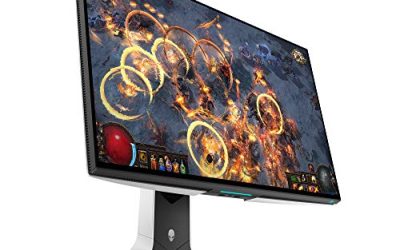
Alienware 27 4K Dual-Resolution Gaming Monitor (AW2725QF)

The AW2725QF is the rare monitor that treats two different gamers as the same customer. In 4K mode it is a sharp, color-rich 27-inch display for slow, beautiful games and everyday desktop work, with 95 percent DCI-P3 coverage and factory calibration rated at Delta E under 2. Flip to the FHD mode and it becomes a 360Hz competition screen with a 0.5ms gray-to-gray response time and support for both NVIDIA G-SYNC Compatible and VESA AdaptiveSync, so frame pacing stays smooth on either major GPU brand.
Beyond the panel itself, the hardware is arranged for a desk that hosts more than one machine. The stand adjusts for height, tilt, swivel and pivot, and the panel accepts a 100 x 100 VESA mount if you prefer an arm. Two USB-A ports and the USB-C port sit within easy reach under the front edge for a mouse dongle or a quick phone charge, while the remaining ports stay at the back. Dolby Vision and VESA DisplayHDR 600 certification give HDR games and video more highlight detail than a basic SDR panel can show, and the hexagonal base leaves more usable desk space than wide tripod feet.
Specs
- Display: 27.4-inch IPS panel, matte finish, 16:9 aspect ratio
- Native resolution: 3840 x 2160 (163 pixels per inch)
- Dual modes: 4K up to 180Hz (overclock) and FHD 1920 x 1080 up to 360Hz (overclock)
- Response time: 0.5ms gray-to-gray, 1ms gray-to-gray in Extreme Mode
- Contrast ratio: 1,000:1; viewing angle 178 degrees
- Color: 95 percent DCI-P3 coverage, calibrated to Delta E under 2
- HDR: Dolby Vision and VESA DisplayHDR 600
- Sync: NVIDIA G-SYNC Compatible and VESA AdaptiveSync
- Ports: 2 HDMI, 1 DisplayPort, USB 3.2 Gen 1 hub with 1 USB-B upstream, 3 USB-A downstream and 1 USB-C downstream with power charging
- Eye comfort: ComfortView Plus hardware low-blue-light technology
- Dimensions as listed: 24.07 x 20.42 x 9.59 inches
- In the box: monitor, stand riser and base, HDMI cable, power cable, VESA cover, quick setup guide
Best for: PC gamers who play both demanding single-player games at 4K and competitive shooters where a 360Hz mode earns its keep, especially in a setup shared with a console.
Watch out for: The 180Hz and 360Hz figures are overclock rates you enable in the menu, and there is no USB-C video input, so check your GPU output and laptop connection plan before ordering.
ASIN: B0C1SDSYV6
Which One Fits Your Situation
You play story games on weeknights and ranked shooters on weekends
This is exactly the split the AW2725QF was built around. Run the 4K mode for exploration games, racers and anything where scenery matters, then switch to the FHD 360Hz mode when you queue for competitive matches and motion clarity decides rounds. One desk, one panel, no second monitor to store, and no need to decide in advance which kind of gamer you are.
Your desk also holds a PlayStation or Xbox
Consoles belong on the HDMI 2.1 inputs, which are designed for 4K at 120Hz with variable refresh rate, while your PC takes the DisplayPort. The eARC support on one HDMI port lets a soundbar handle audio for both machines. That leaves the AW2725QF as the single screen for the whole entertainment corner, with the 4K mode doing double duty for console games and streamed video.
Your graphics card is midrange now but due an upgrade
Buy the monitor your next card deserves and run the FHD mode in the meantime. Competitive titles will still hit very high frame rates at 1080p on modest hardware, and desktop work already looks crisp in 4K even if games cannot yet. When the stronger card arrives, the 4K 180Hz mode is waiting with no second purchase, which makes this a reasonable forward-looking buy rather than an overreach.
You edit photos or video at the same desk
The color side of this panel is stronger than most gaming monitors offer. Coverage of 95 percent of the DCI-P3 gamut and factory calibration to Delta E under 2 mean the AW2725QF can handle color-sensitive hobbies and content work credibly, and the 4K resolution gives timelines and photo grids room to breathe. ComfortView Plus helps on long editing days, and the pivot-capable stand suits portrait-format review work.
Common Mistakes
- Buying for 4K at 180Hz while owning a graphics card that can only sustain a fraction of that frame rate at 4K, then blaming the monitor for the gap.
- Leaving the panel at its default rates and never enabling the overclock in the on-screen menu, so the advertised 180Hz and 360Hz never actually switch on.
- Assuming the USB-C port carries video; on this monitor it is a downstream data and charging port, and laptops still need HDMI or DisplayPort for the picture.
- Expecting OLED-style black levels from the HDR badge; DisplayHDR 600 on an IPS panel improves highlights, but the 1,000:1 contrast ratio keeps dark scenes a step behind OLED.
- Working all day in the FHD mode after a gaming session; text and interface elements look noticeably softer at 1080p on a 27-inch screen, so switch back to 4K for productivity.
Frequently Asked Questions
How do you switch between the 4K and FHD modes?
The change happens in the monitor’s own on-screen menu, worked with the joystick control on the panel. Selecting the FHD mode reconfigures the display to its native 1920 x 1080 mode with refresh rates up to 360Hz, and selecting the 4K mode returns it to 3840 x 2160 at up to 180Hz. Your PC or console then sees the matching resolution, so no cable swap or second display is involved.
Will a PlayStation 5 or Xbox Series X work well with it?
Yes. The two HDMI 2.1 inputs are built for console signals at 4K and 120Hz with variable refresh rate, which covers what current consoles output, and one of them passes audio through eARC to a soundbar. Your PC can stay on DisplayPort at the same time, so switching between console and computer is an input change on the monitor rather than a rewiring job behind the desk.
Does it support both NVIDIA and AMD graphics cards?
It does. The listing names NVIDIA G-SYNC Compatible certification and VESA AdaptiveSync, and AdaptiveSync is the open standard that AMD cards use for variable refresh rate. Either way, the monitor can match its refresh to the frame rate your card produces, which reduces tearing and stutter in both the 4K and FHD modes without locking you into one GPU brand for your next upgrade.
Does the AW2725QF have built-in speakers?
No. Dell’s specification for this model lists no speakers and no audio line-out, so sound has to come from your PC, your console or external speakers. The practical workaround is the eARC support on one HDMI port, which passes audio through to a soundbar, or simply using headphones and speakers connected to your computer or console as you normally would for gaming.
More from Amazon
Programs that pair well with the guide above. Offers and eligibility are set by Amazon and may change.
Free shipping on eligible items, Prime Video and more. Eligible new members can start with a free trial.
Start a Prime free trialAd-free music streaming. Eligible new subscribers can start with a free trial.
Try Music Unlimited freeA Prime membership for ages 18-24 with a trial period. Eligibility is set by Amazon.
See Prime for Young AdultsAudiobooks and podcasts to listen to on the go. Eligible new members can start with a free trial.
Try Audible freeAs an Amazon Associate we earn from qualifying purchases.